
How to · 5 steps
Change what someone can do, or remove them
Video coming soon: Inviting your couple and vendors
First, what it doesWhat do Edit, Suggest, Comment and View mean?They set what each person can do on the timeline.Read this firstStep 1: Open the wedding and choose Settings in the wedding's menu. Find Team access.
Step 2: Choose the menu next to the person's name.
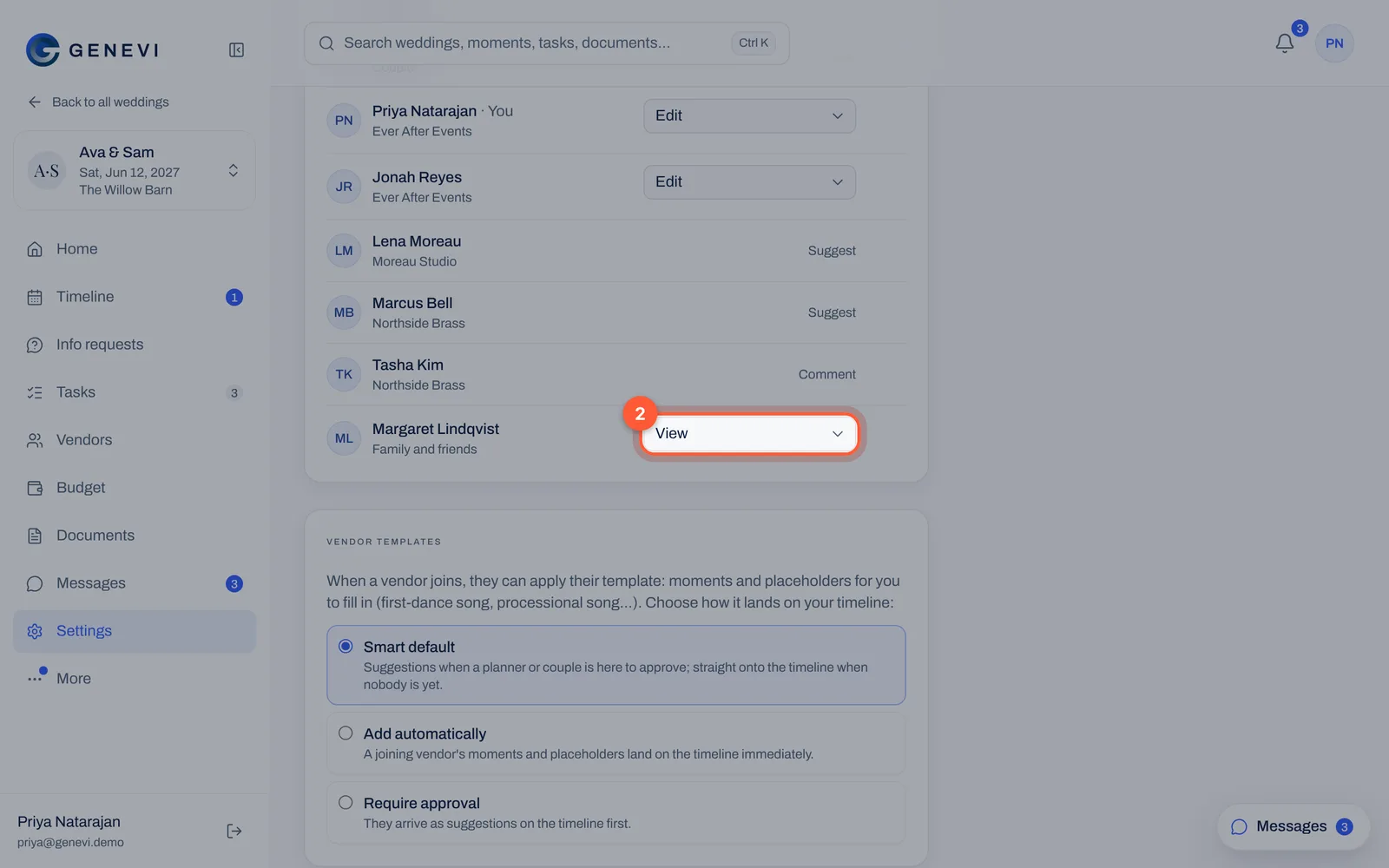
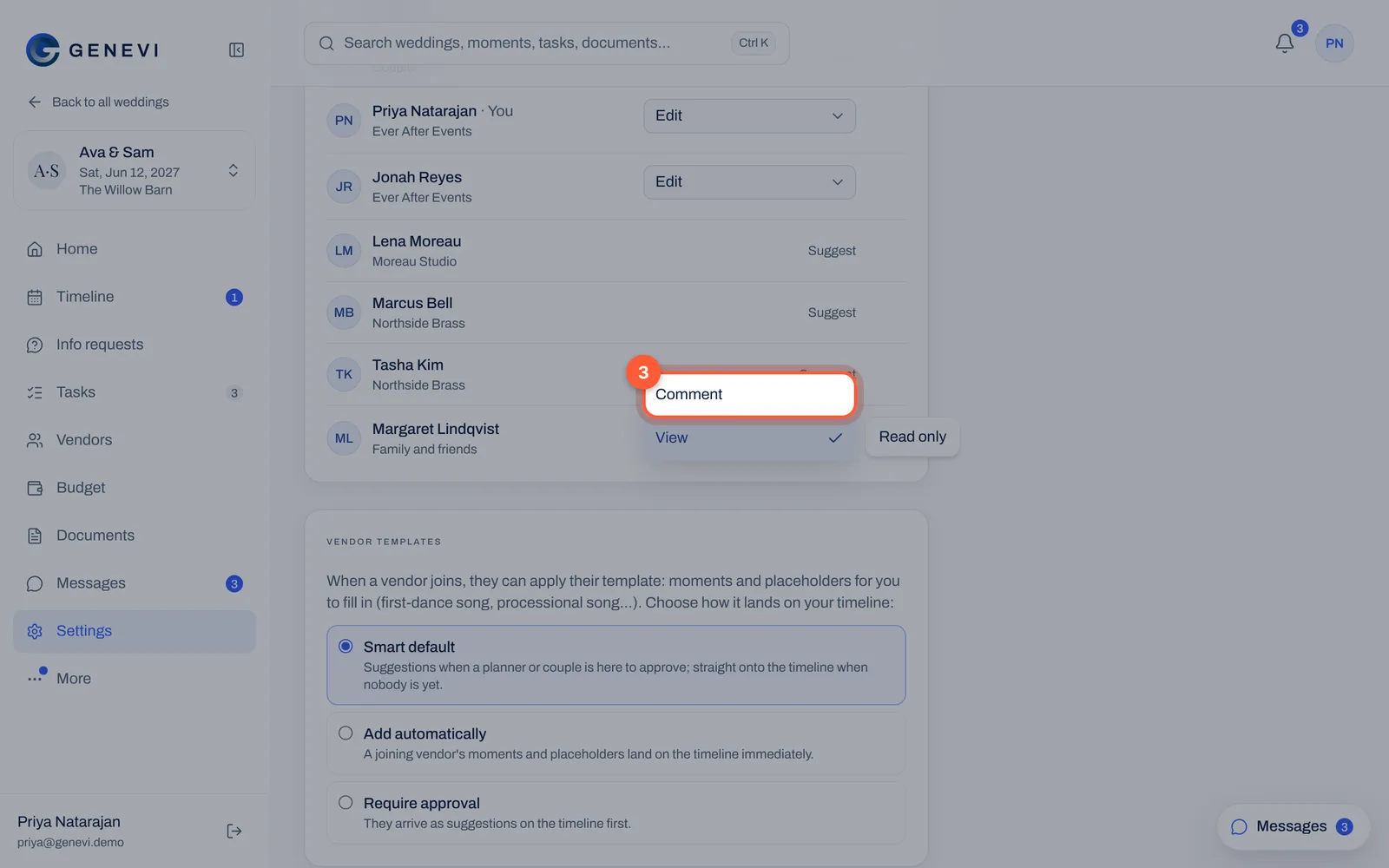
Step 3: Choose what they can do. Edit changes the timeline directly, Suggest sends changes for approval, Comment adds notes and comments only, and View is read only. The change saves at once.
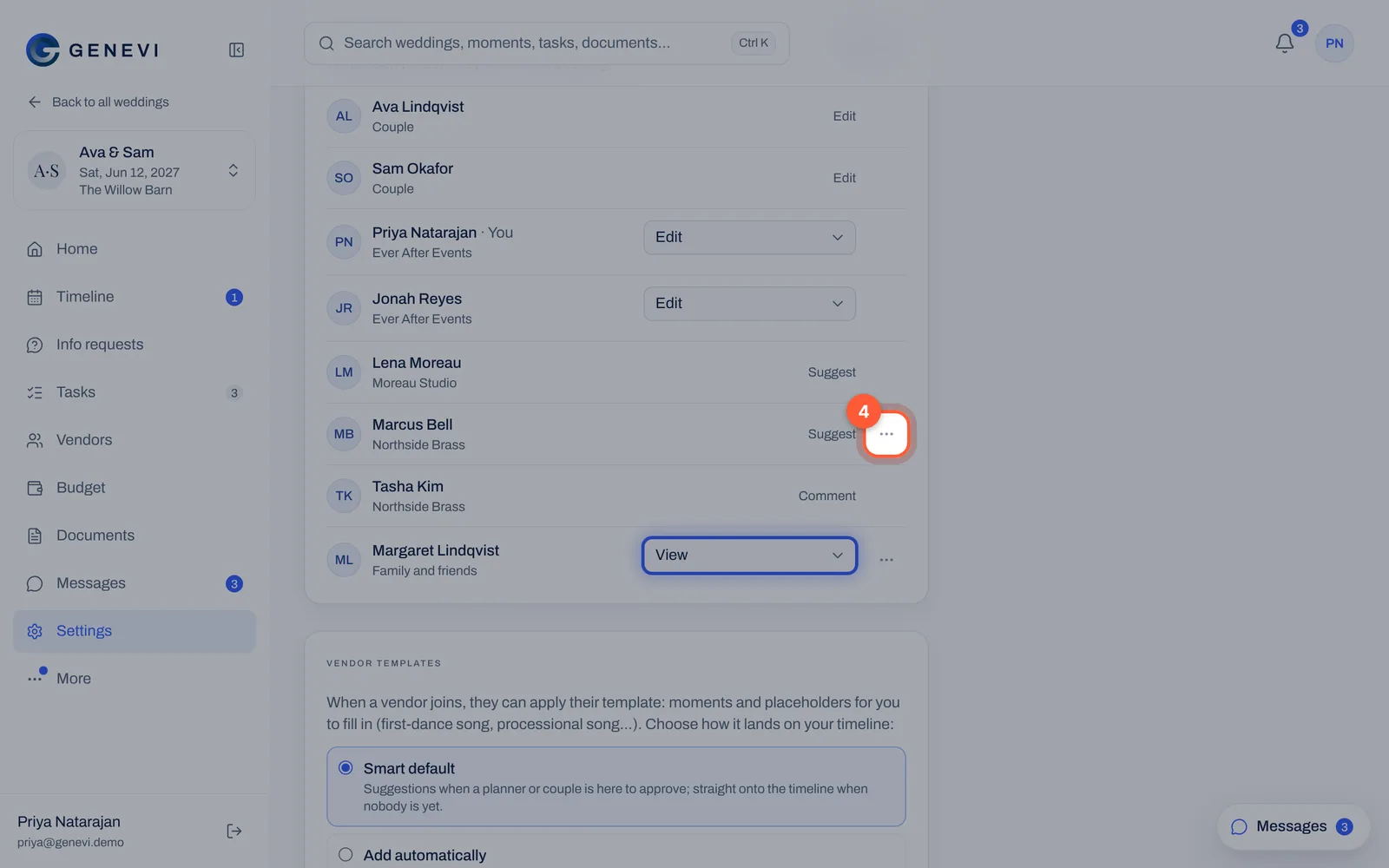
Step 4: To take someone off the wedding, choose ⋯ at the end of their row.
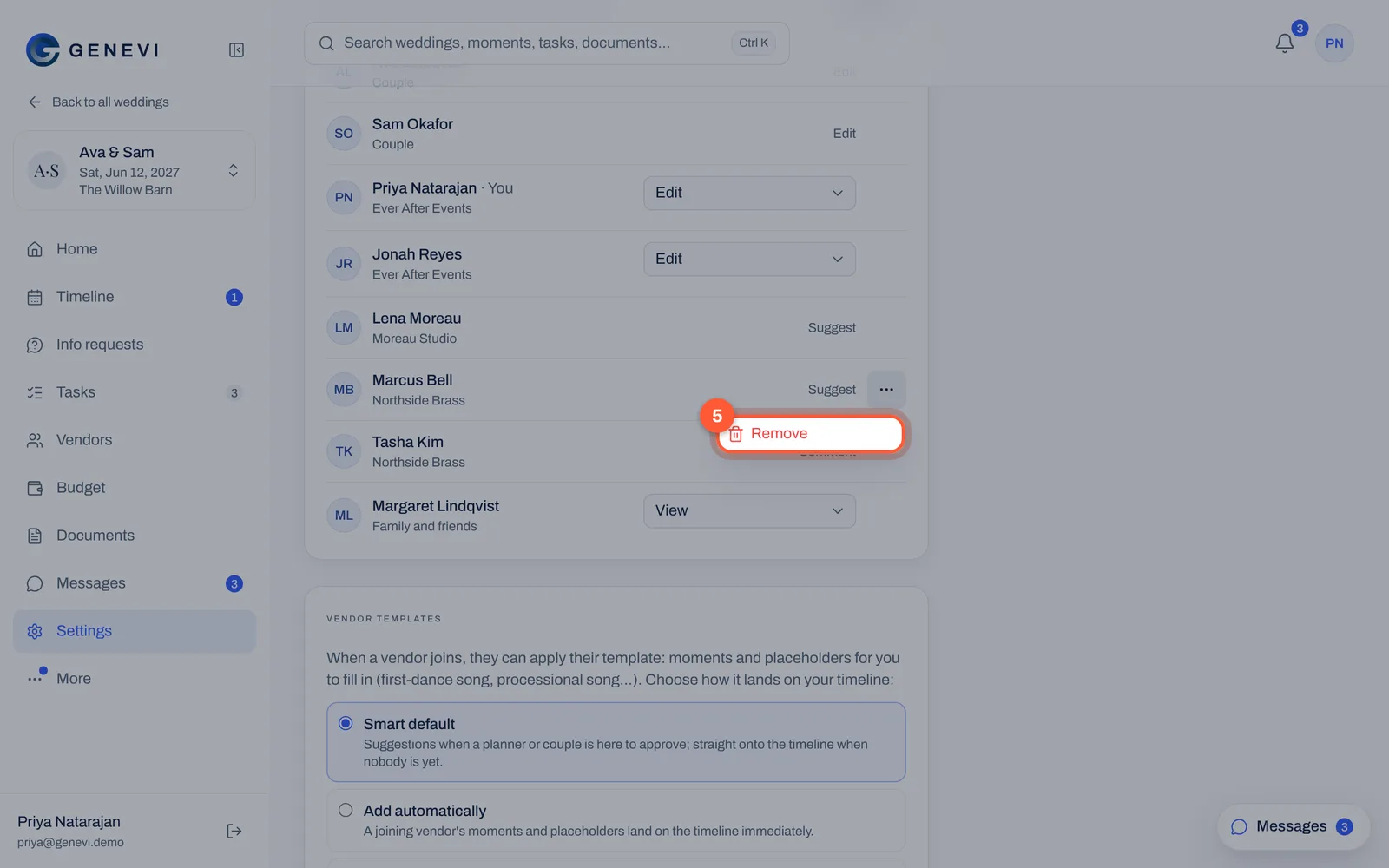
Step 5: Choose Remove. They can no longer open the wedding.
If something goes wrong: No menu next to someone? You can change access for your planning team and for family and friends. A vendor's lead sets what their own team can do.