
How to · 6 steps
Tag a vendor on a moment
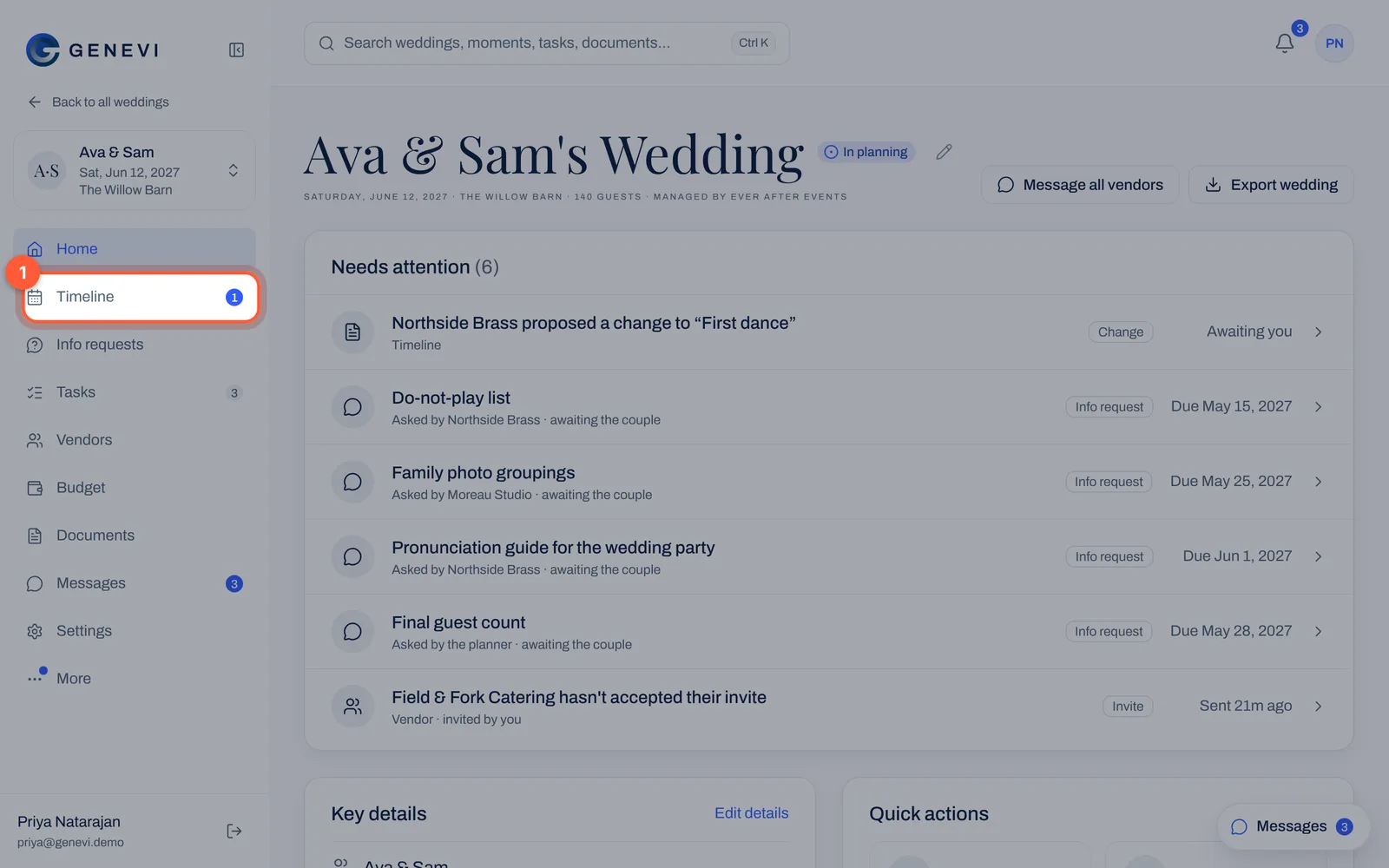
First, what it doesWhat does tagging a vendor on a moment do?It decides which moments each vendor sees first. When a vendor opens the timeline, it shows only the moments they're tagged on.Read this firstStep 1: Open the wedding and choose Timeline in the wedding's menu.
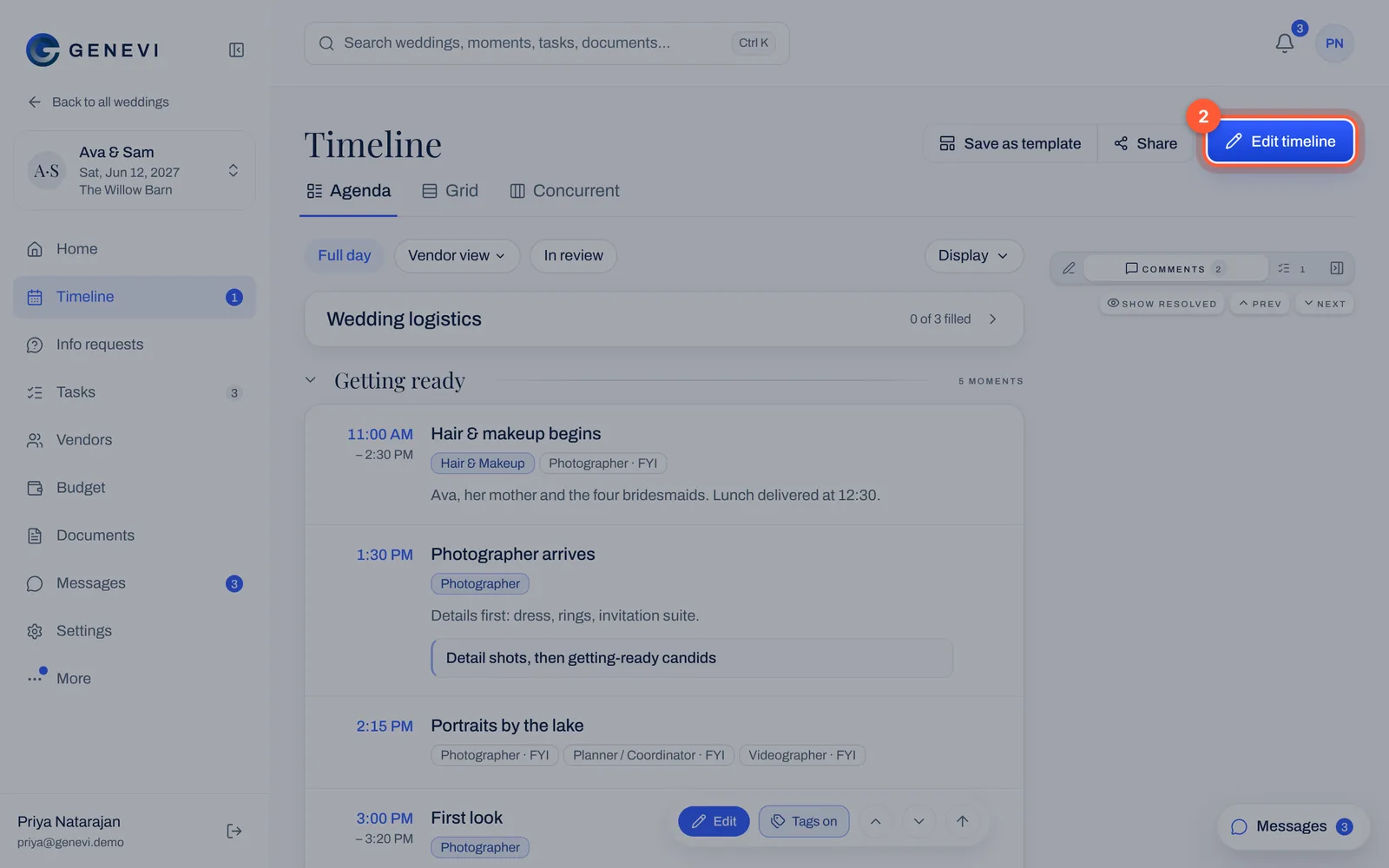
Step 2: Choose Edit timeline, at the top right.
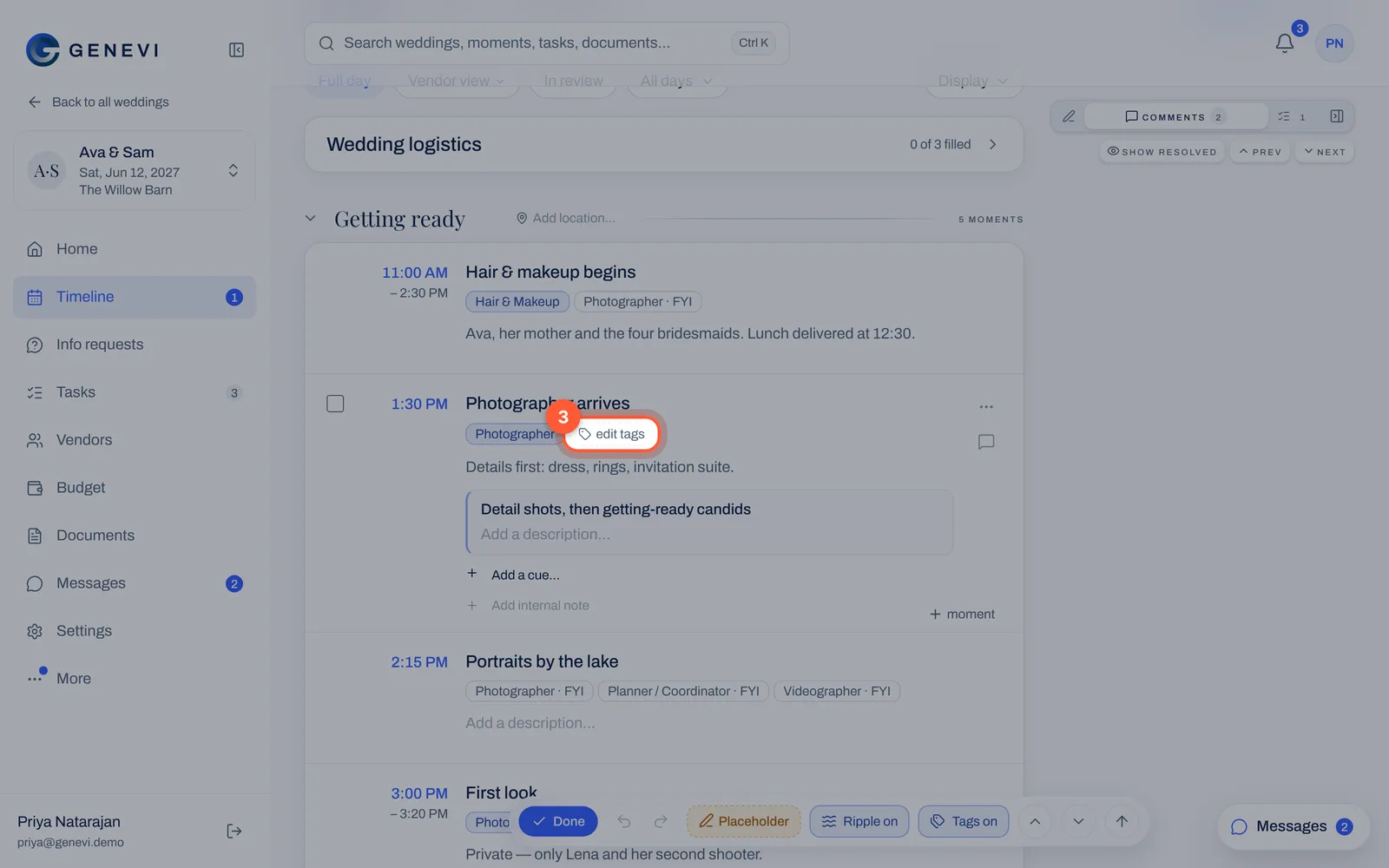
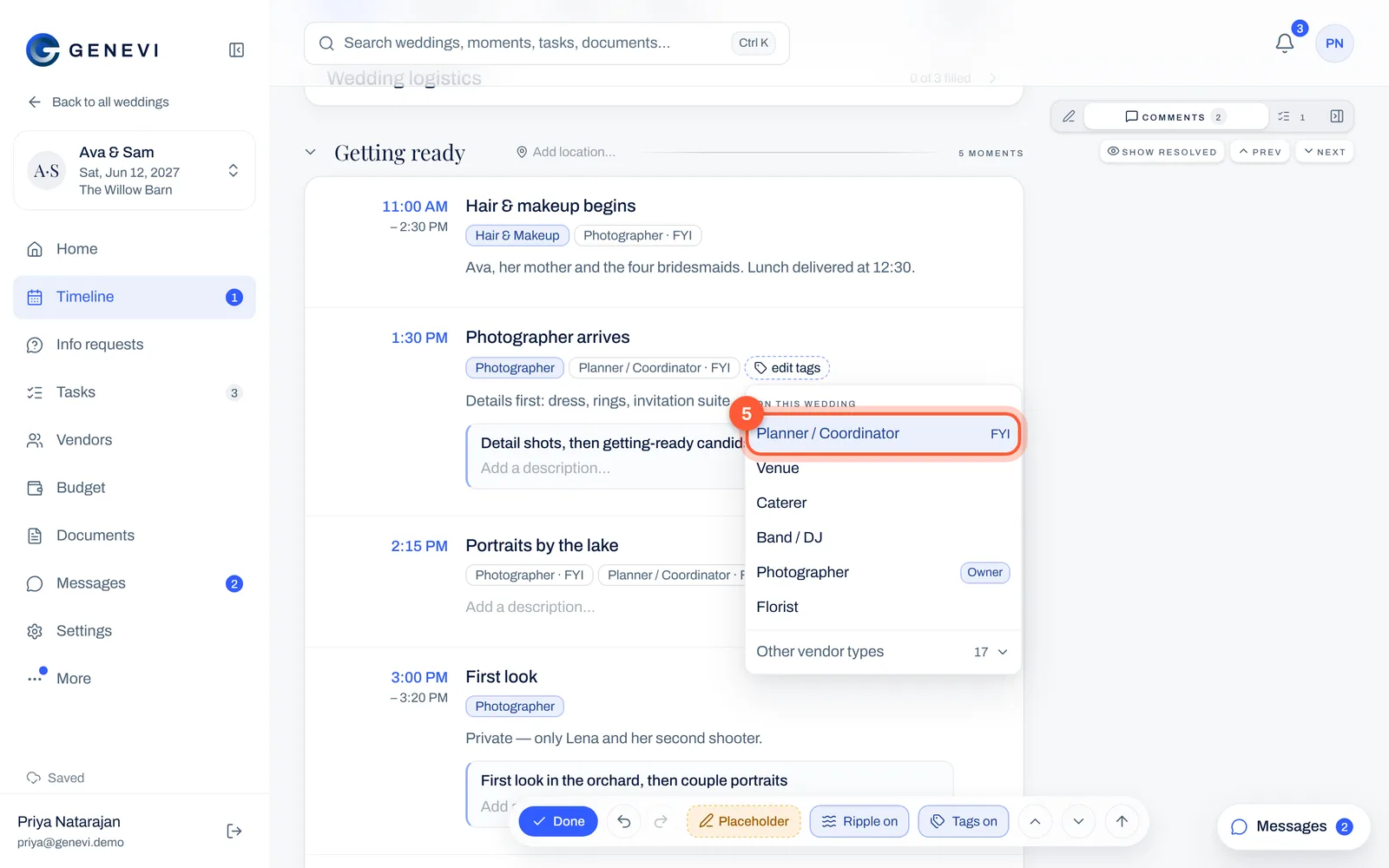
Step 3: Select the moment, then choose edit tags under its name. On a moment with no tags yet it says add tags.
Step 4: Select a vendor once to make them the Owner: the moment is theirs to run.
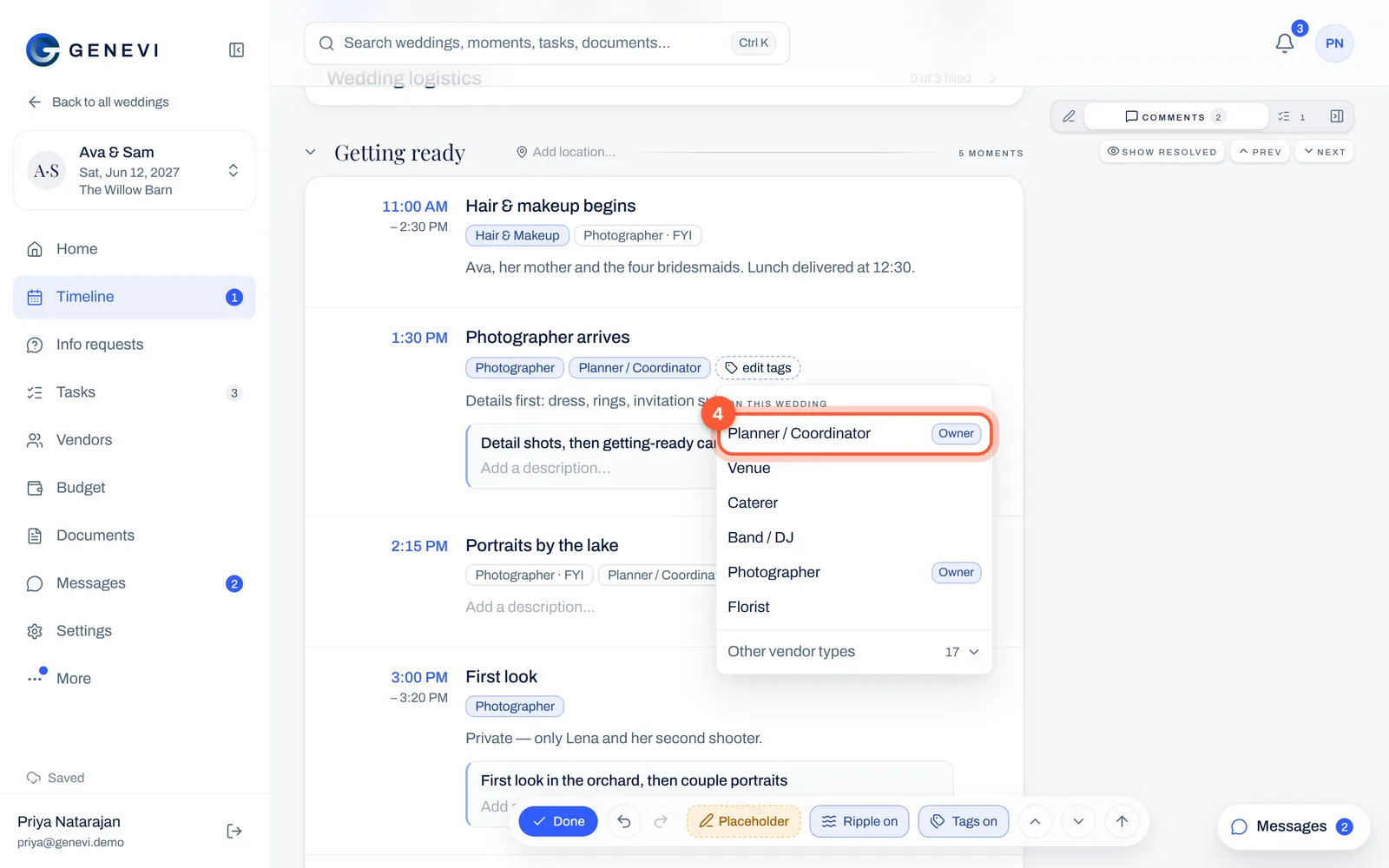
Step 5: Select them again to change it to FYI: they should know about it, but someone else runs it. Select them a third time to take the tag off.
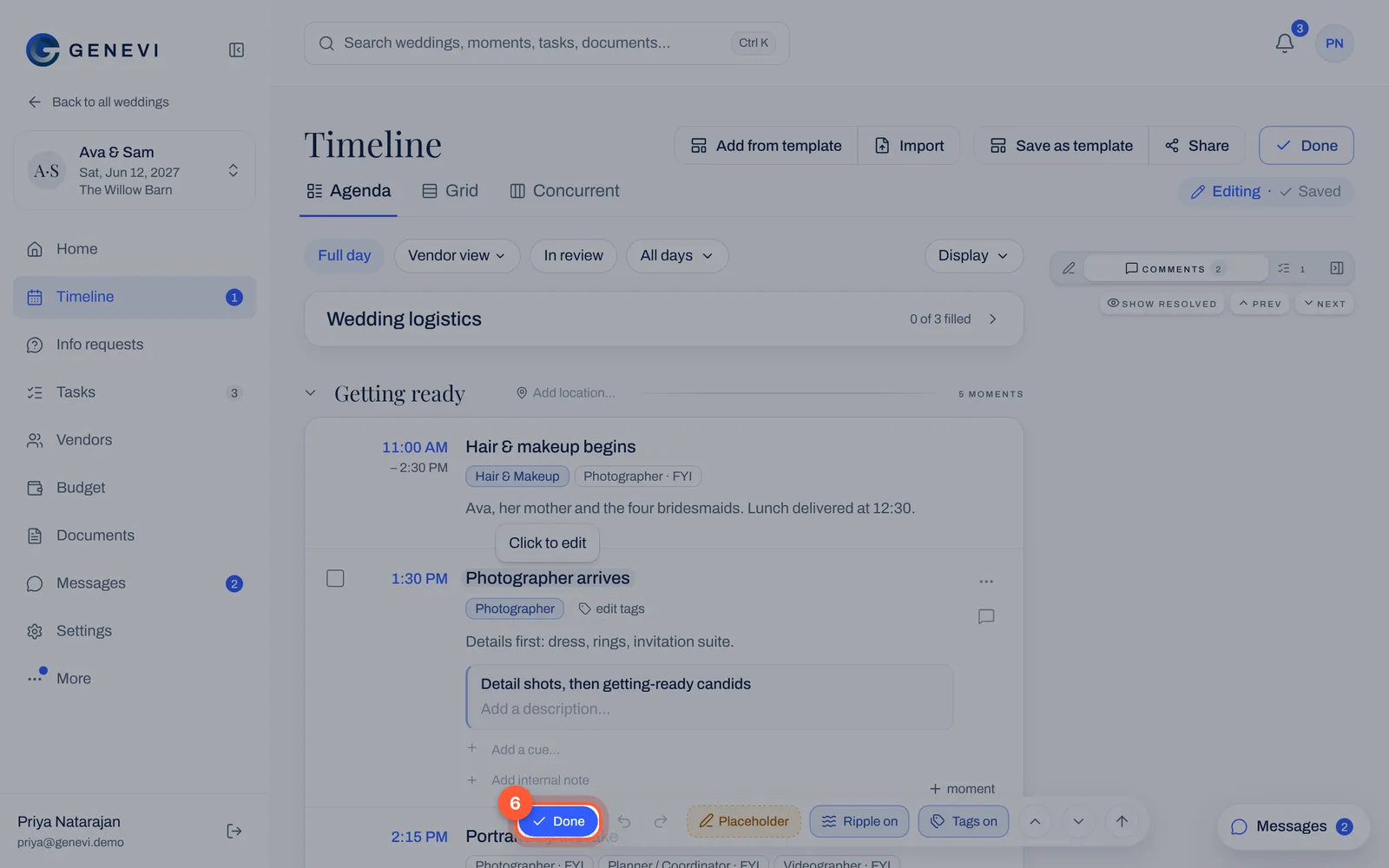
Step 6: Tags save as you go. Choose Done when you've finished editing the timeline.
If something goes wrong: Can't see the vendor you want? Choose Other vendor types at the bottom of the list. Vendors already on the wedding are listed first.