
How to · 3 steps
Share or print the run sheet
Video coming soon: Building your timeline
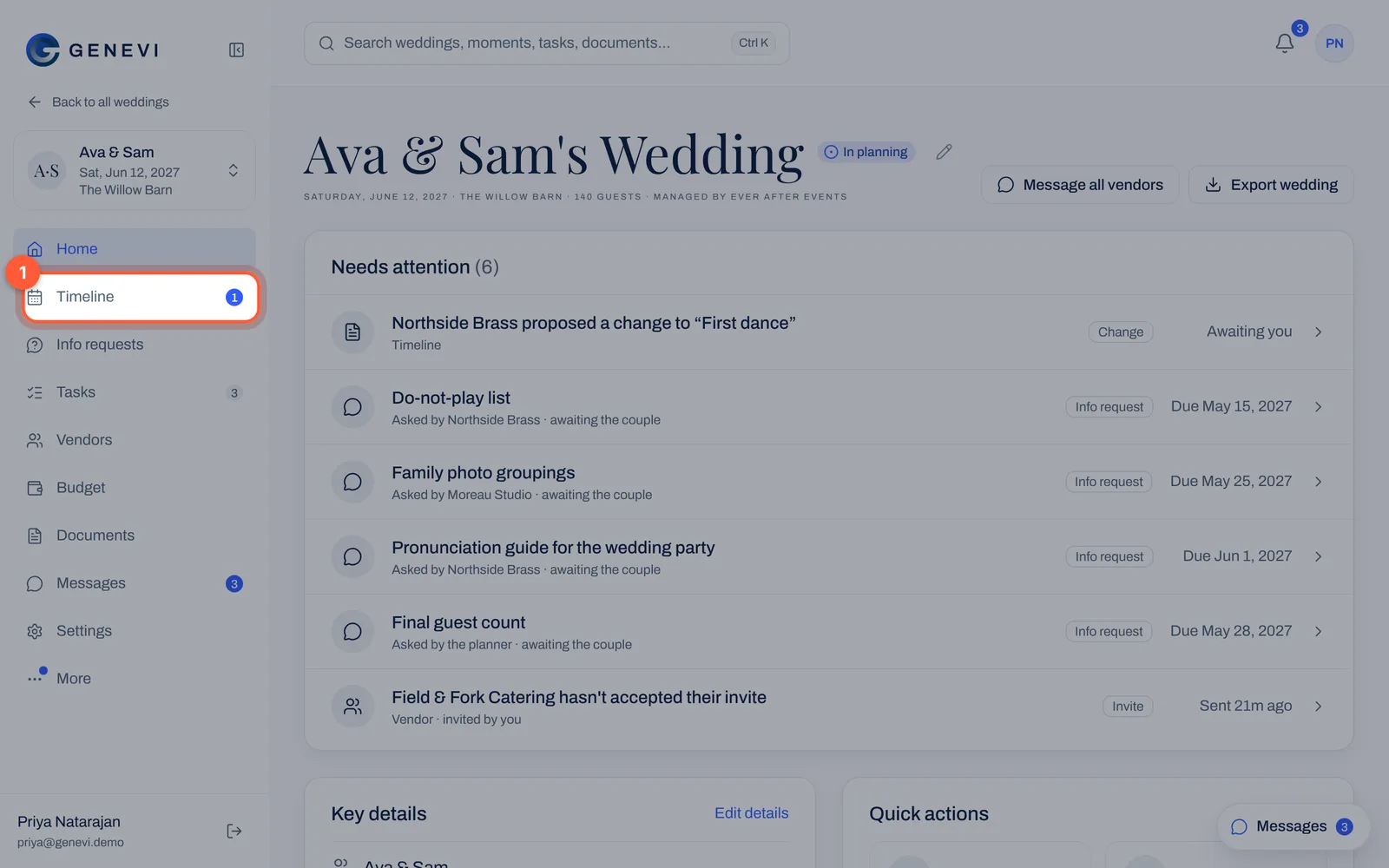
First, what it doesCan I share just one vendor's part of the day?Yes. Send a vendor a link to only their moments and cues, so they don't need an account or a long document.Read this firstStep 1: Open the wedding and choose Timeline in the wedding's menu.
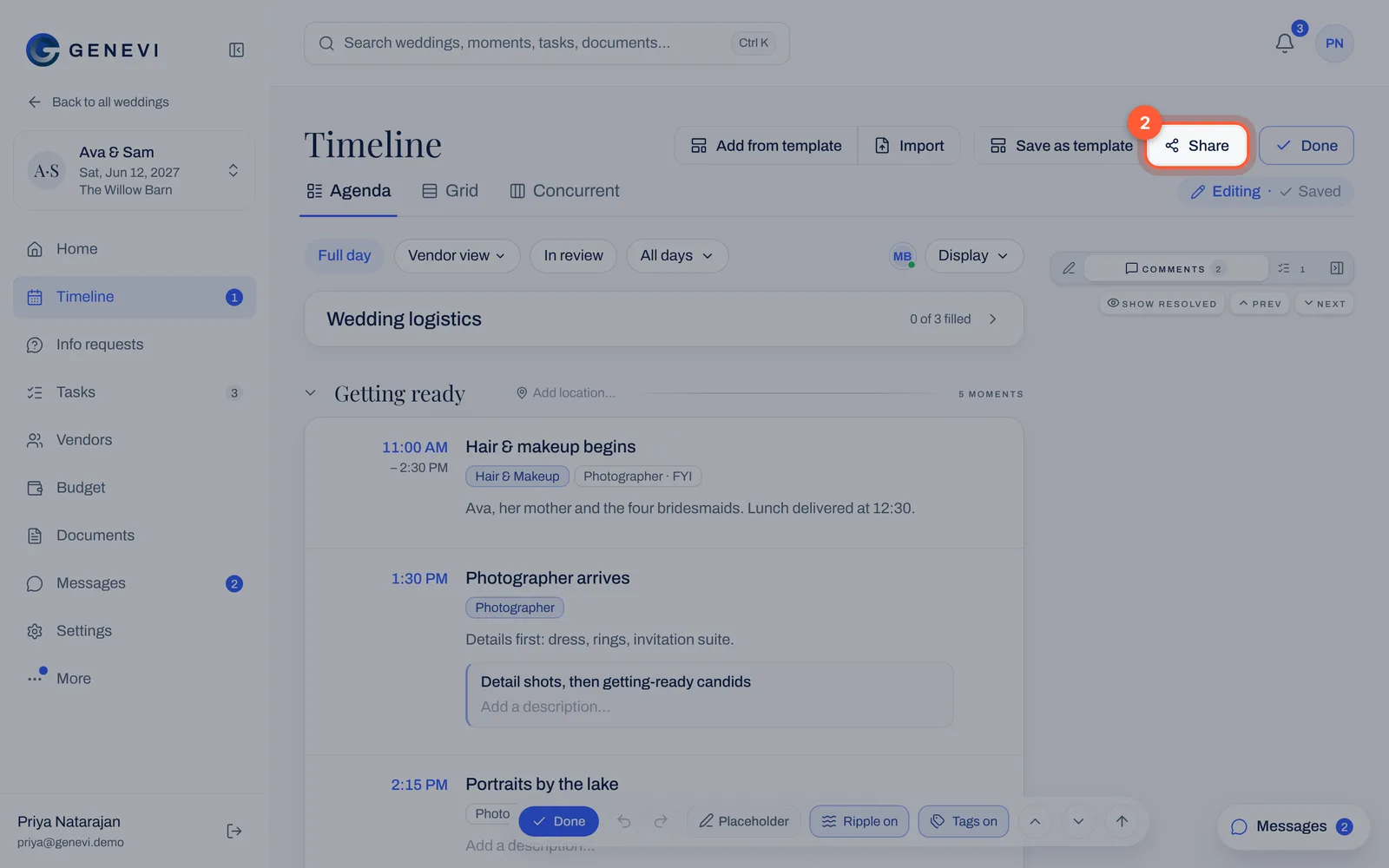
Step 2: Choose Share, at the top right.
Step 3: Under Full day, choose Copy link to get a read-only link anyone can open without signing in, or Download PDF to print it. Internal notes are never included.
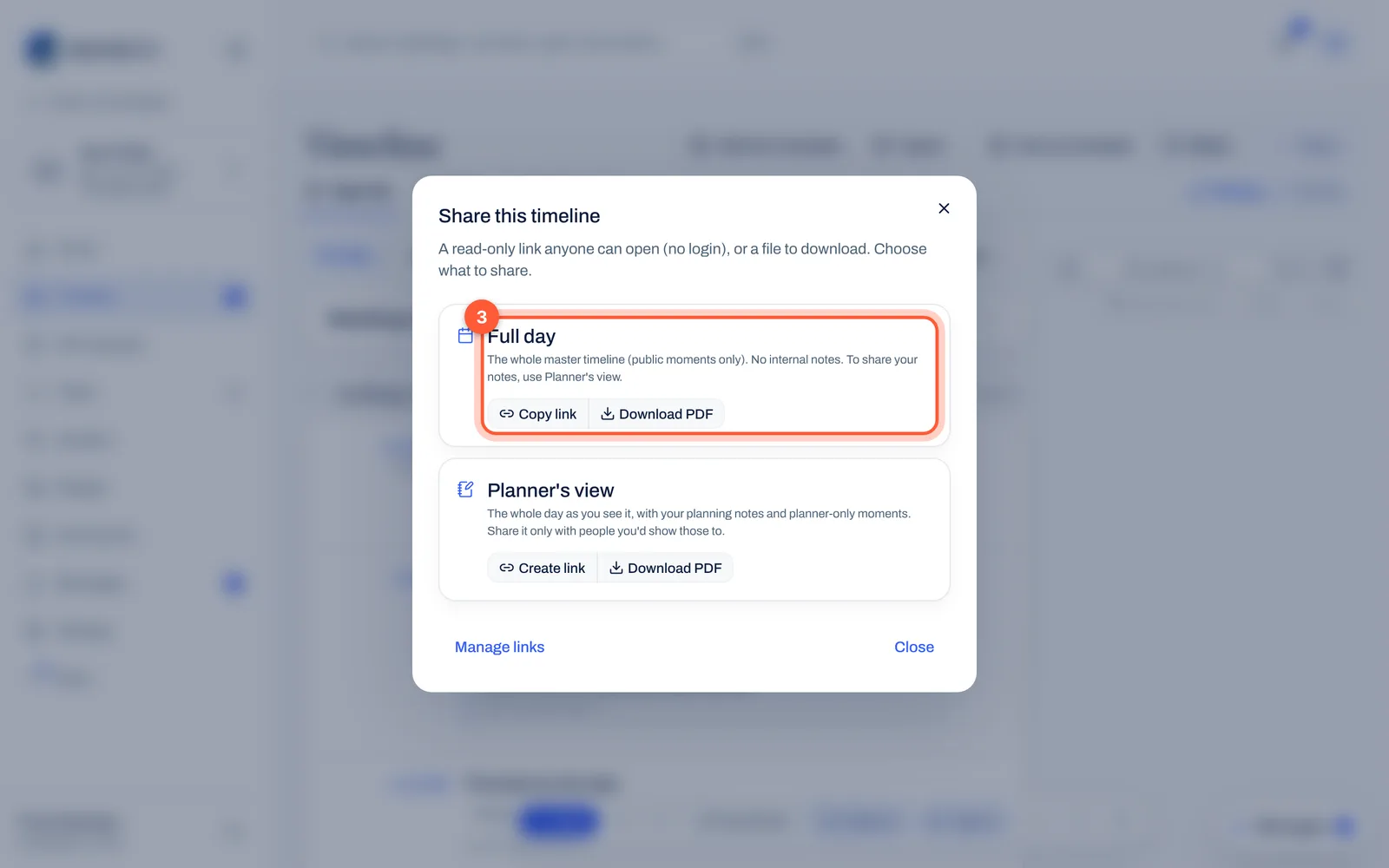
If something goes wrong: Want your planning notes in it too? Use the second choice in the same window, which shares the day as you see it. Only send that one to people you'd show your notes to.