
How to · 4 steps
Approve a vendor's suggested change
Video coming soon: Approving suggestions
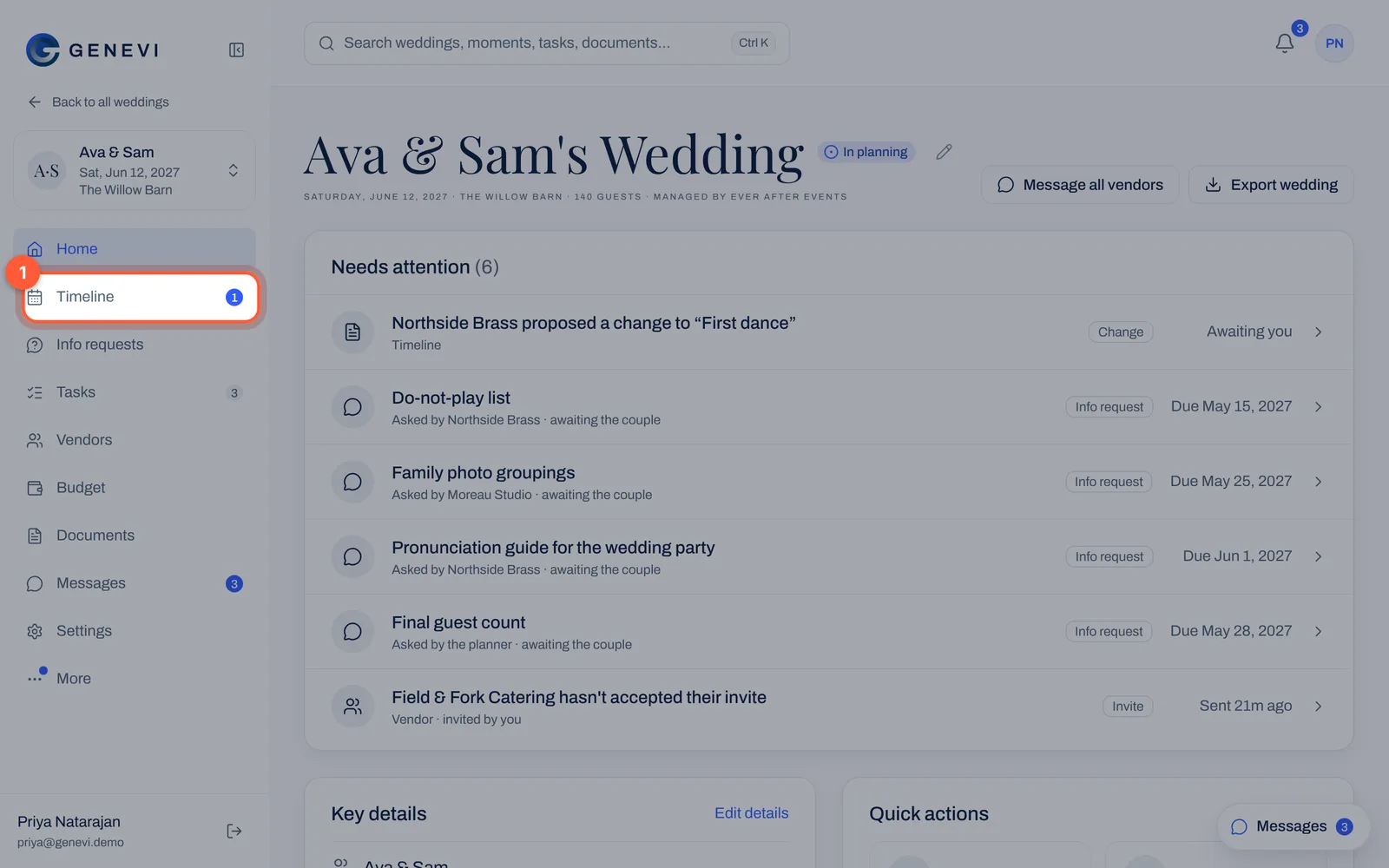
First, what it doesCan my vendors change the timeline?Vendors suggest changes and the planner or couple approves them, so nothing changes on the day without someone in charge knowing.Read this firstStep 1: When a vendor suggests a change, a number shows next to Timeline in the wedding's menu. Choose Timeline.
Step 2: Choose In review to see only the changes waiting for you.

Step 3: Check the change. The old time is crossed out, the new time is shown in amber, and any comment from the vendor sits on the right.

Step 4: Choose Approve to accept it. It goes onto the timeline for everyone. Choose Reject to turn it down, or Request changes to send it back with a note.