
HelpBringing your weddings over
How to · 8 steps
Import one wedding
Video coming soon: Bringing your weddings over
First, what it doesCan I bring my existing weddings over from another system?Yes. Upload the run sheet you already use and Genevi turns it into a wedding, so you don't retype a single moment.Read this firstStep 1: Save the wedding's timeline or run sheet as an Excel file, a CSV or a PDF.
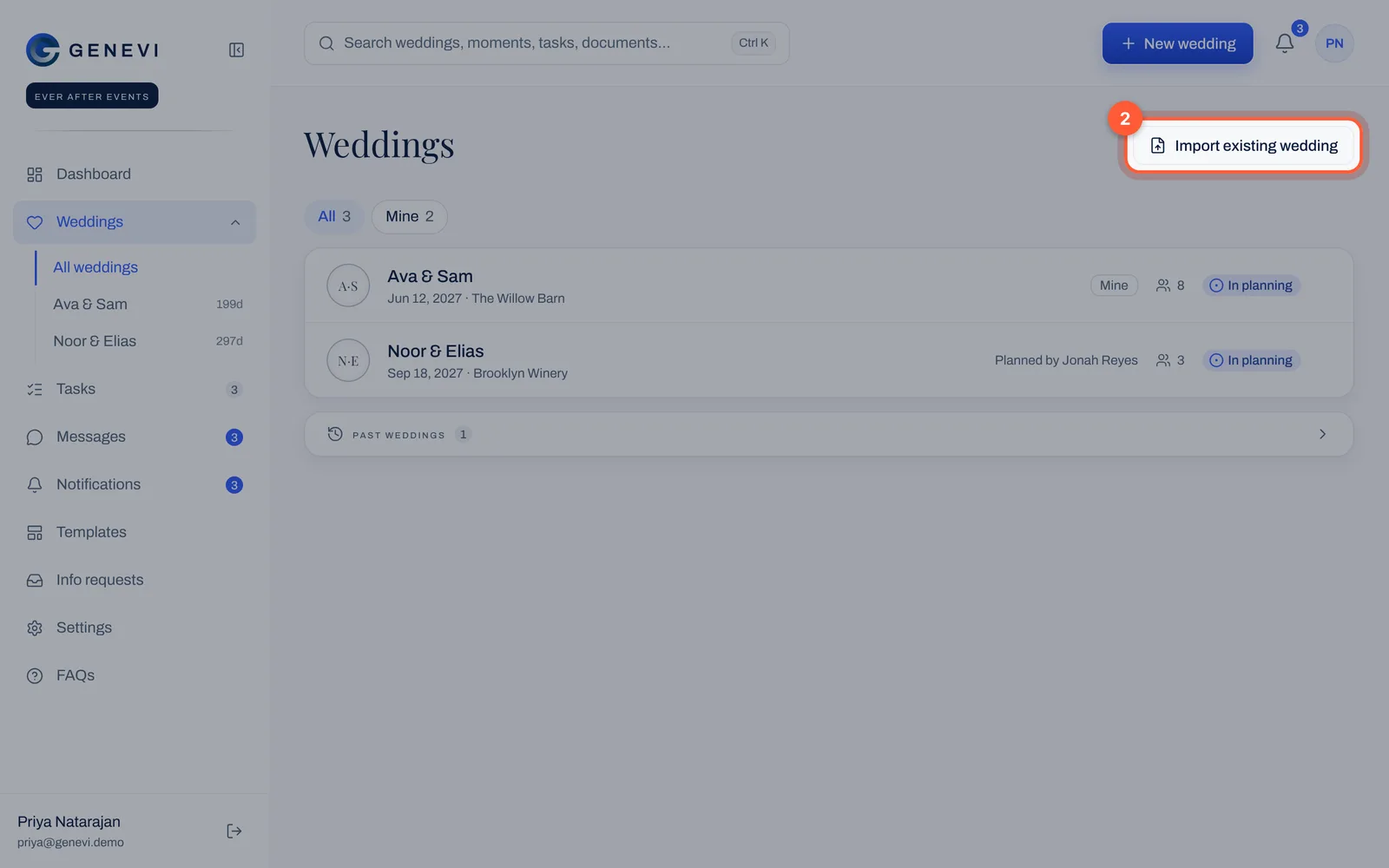
Step 2: Go to Weddings and choose Import existing wedding, at the top right.
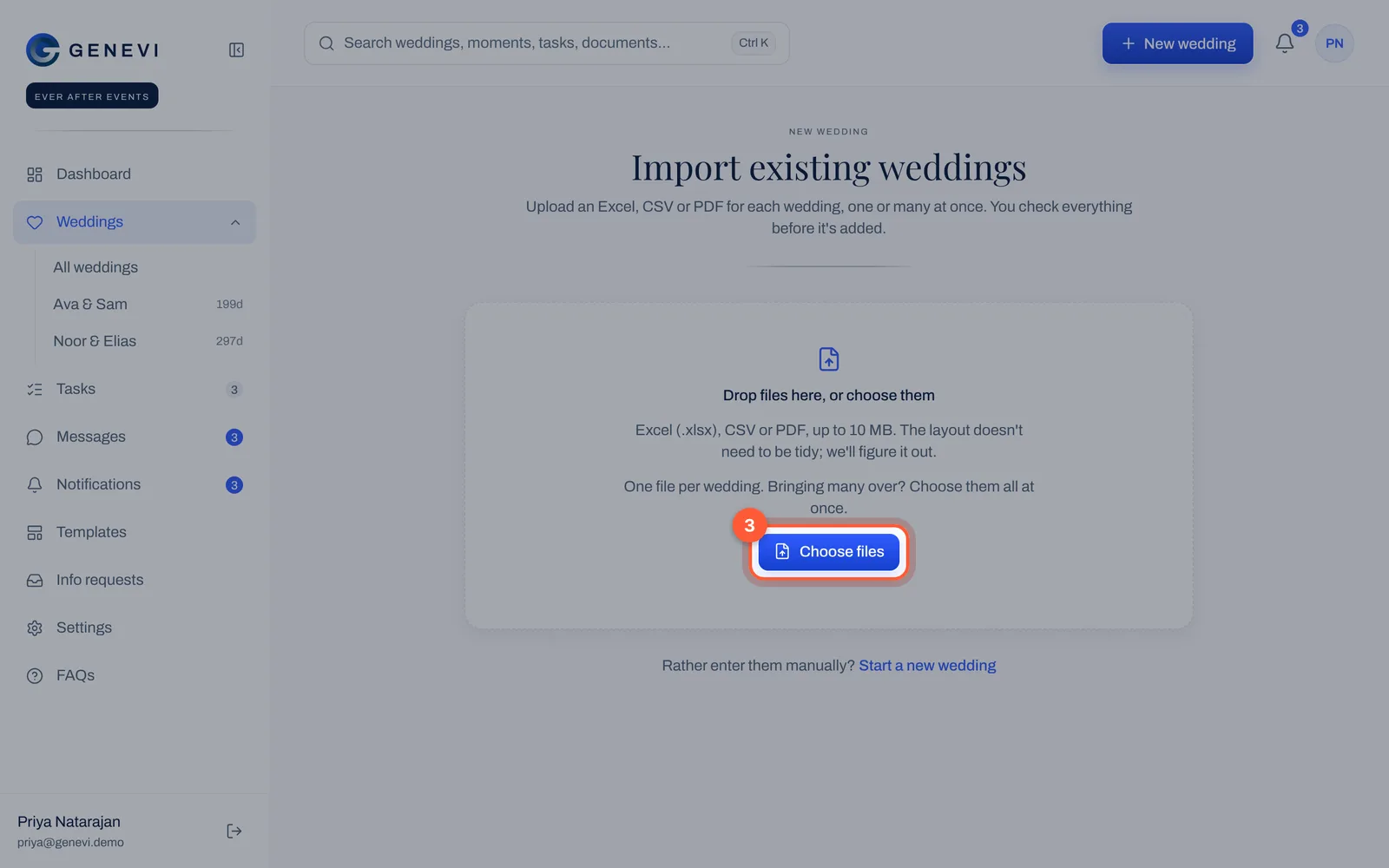
Step 3: Drag your file onto the card, or choose Choose files and pick it. Genevi reads it, which usually takes under a minute.
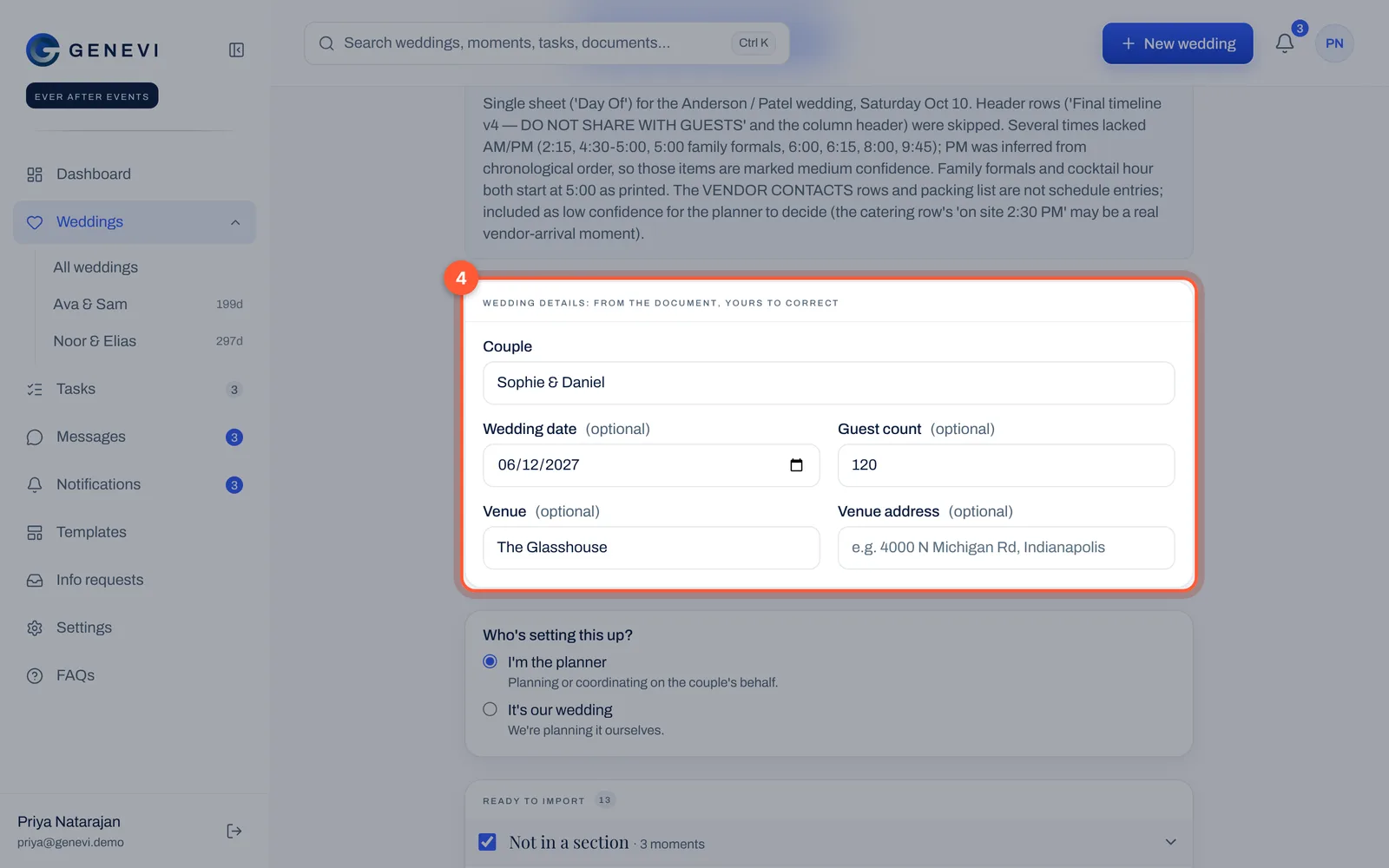
Step 4: Check the wedding's details: the couple's names, the date, the guest count and the venue. Type over anything that's wrong. Nothing has been created yet.
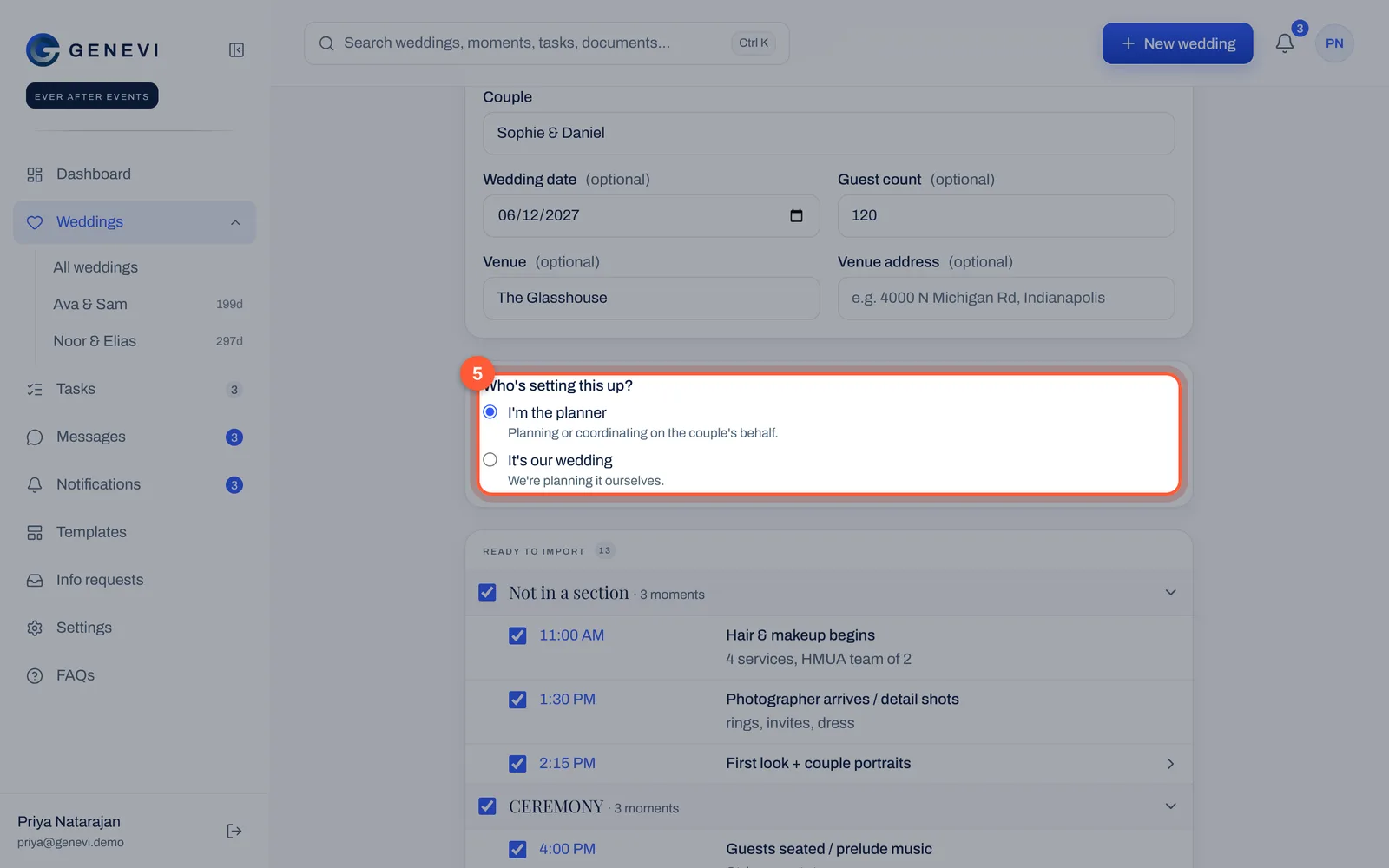
Step 5: Under Who's setting this up?, choose I'm the planner, or It's our wedding if the couple are planning it themselves.
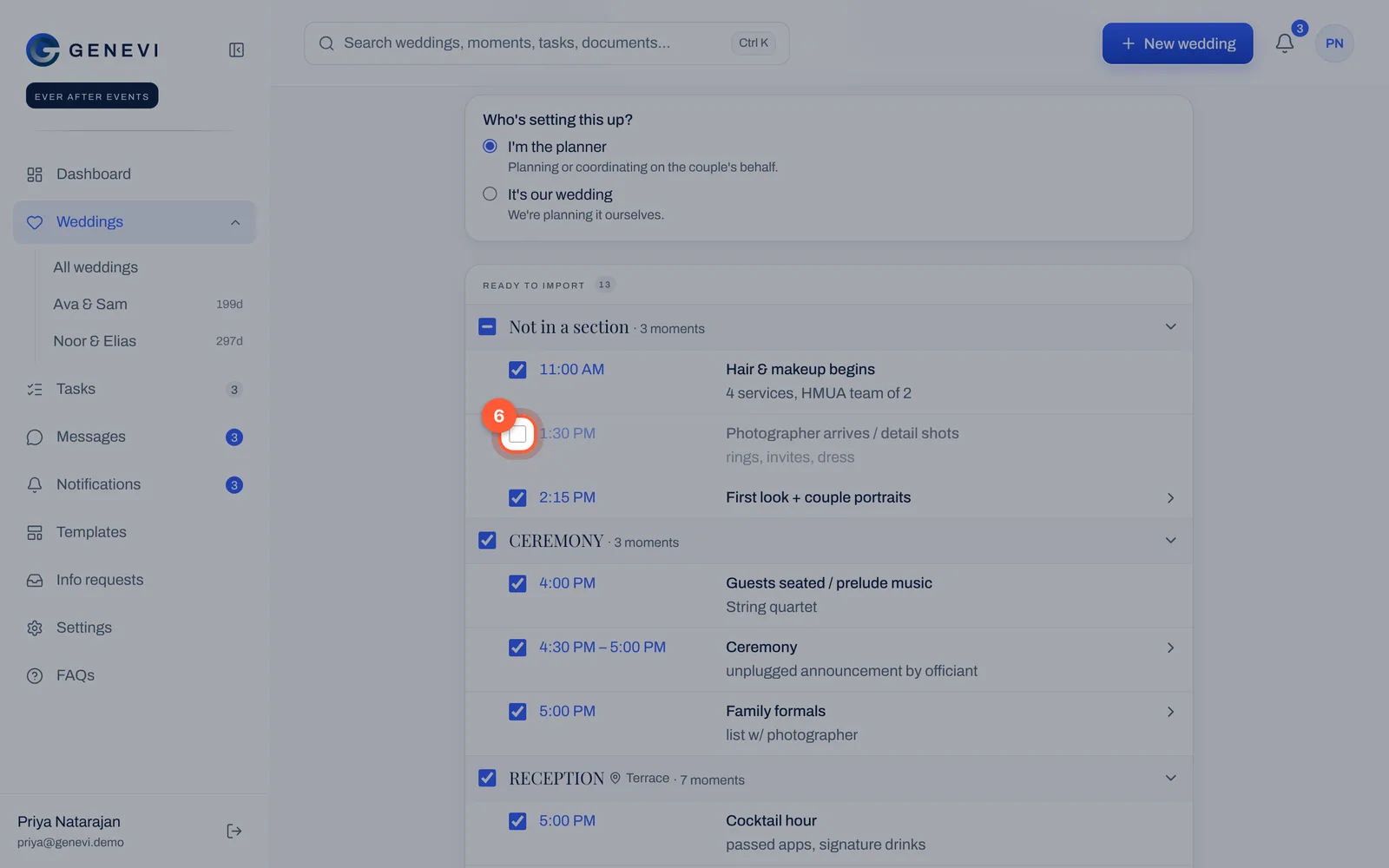
Step 6: Look through the moments. Unselect any you don't want to bring over by pressing its box.
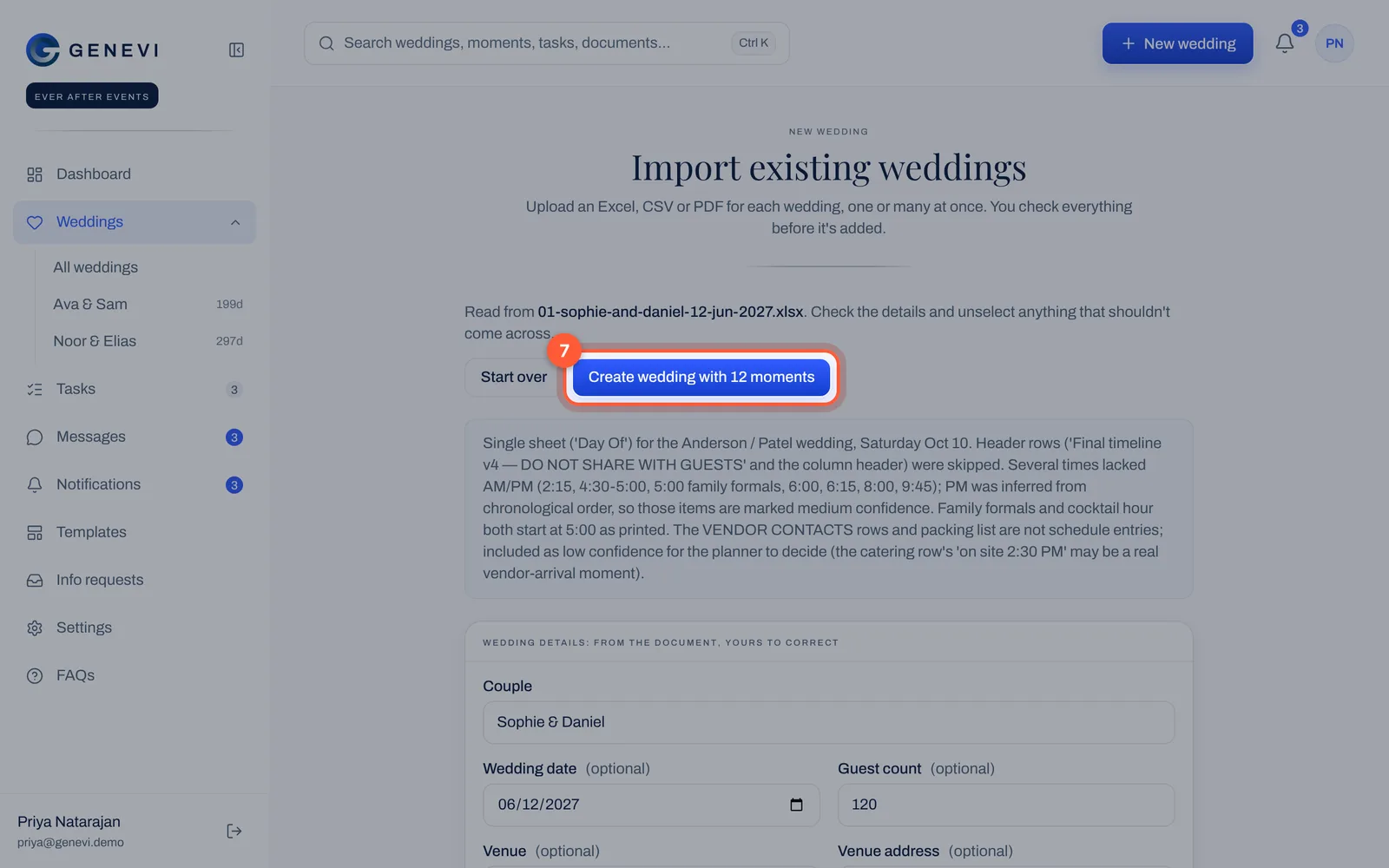
Step 7: Choose Create wedding with 12 moments at the top (the number matches the moments you kept).
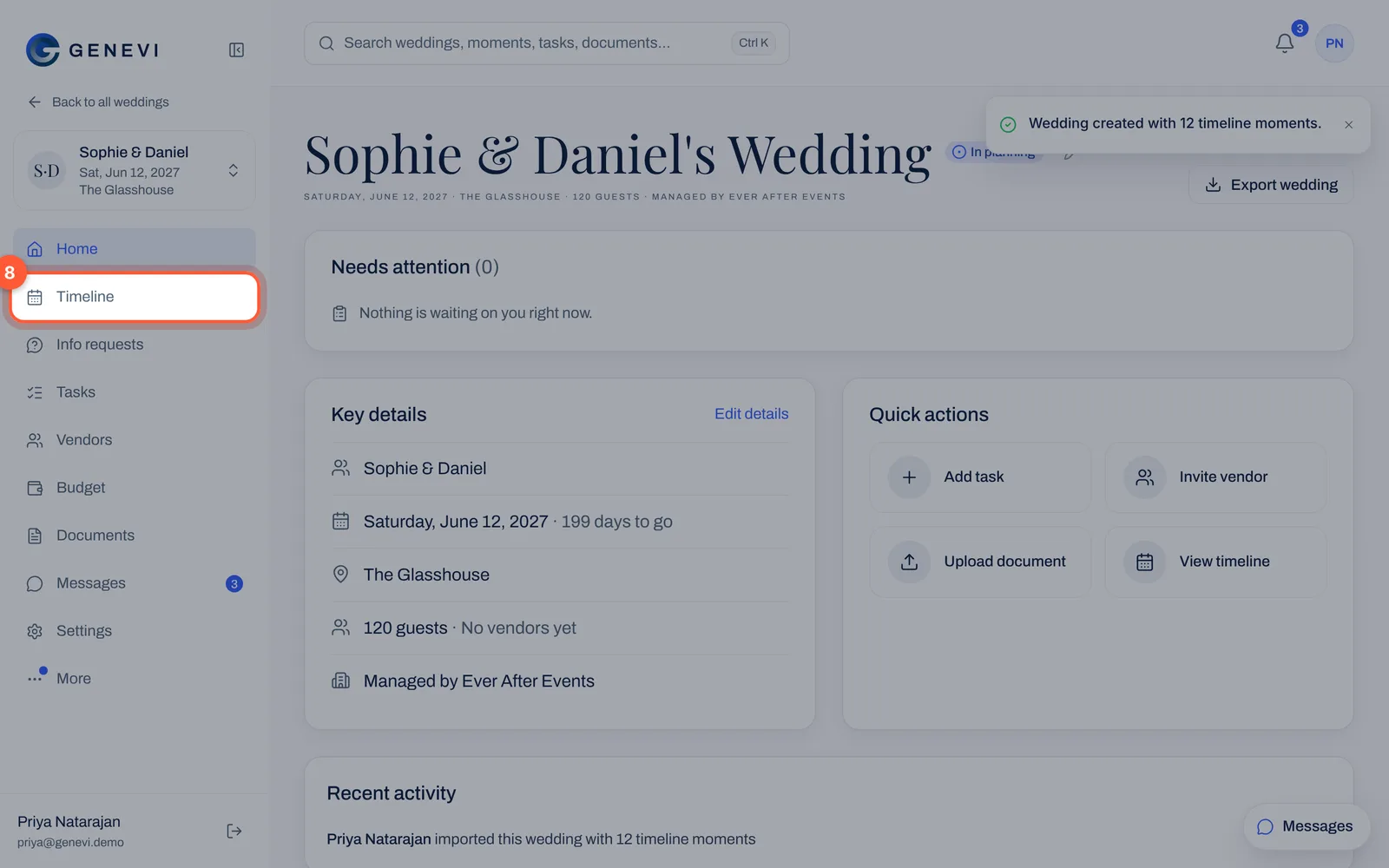
Step 8: Your new wedding opens. Choose Timeline in the wedding's menu to see the day you brought over.
If something goes wrong: No date? Your file didn't include the year. Add the date on the check screen before you create the wedding.