
HelpBringing your weddings over
How to · 8 steps
Import many weddings at once
Video coming soon: Bringing your weddings over
First, what it doesCan I bring many weddings over at once?Read this firstStep 1: Save each wedding as its own Excel file, CSV or PDF. One file per wedding.
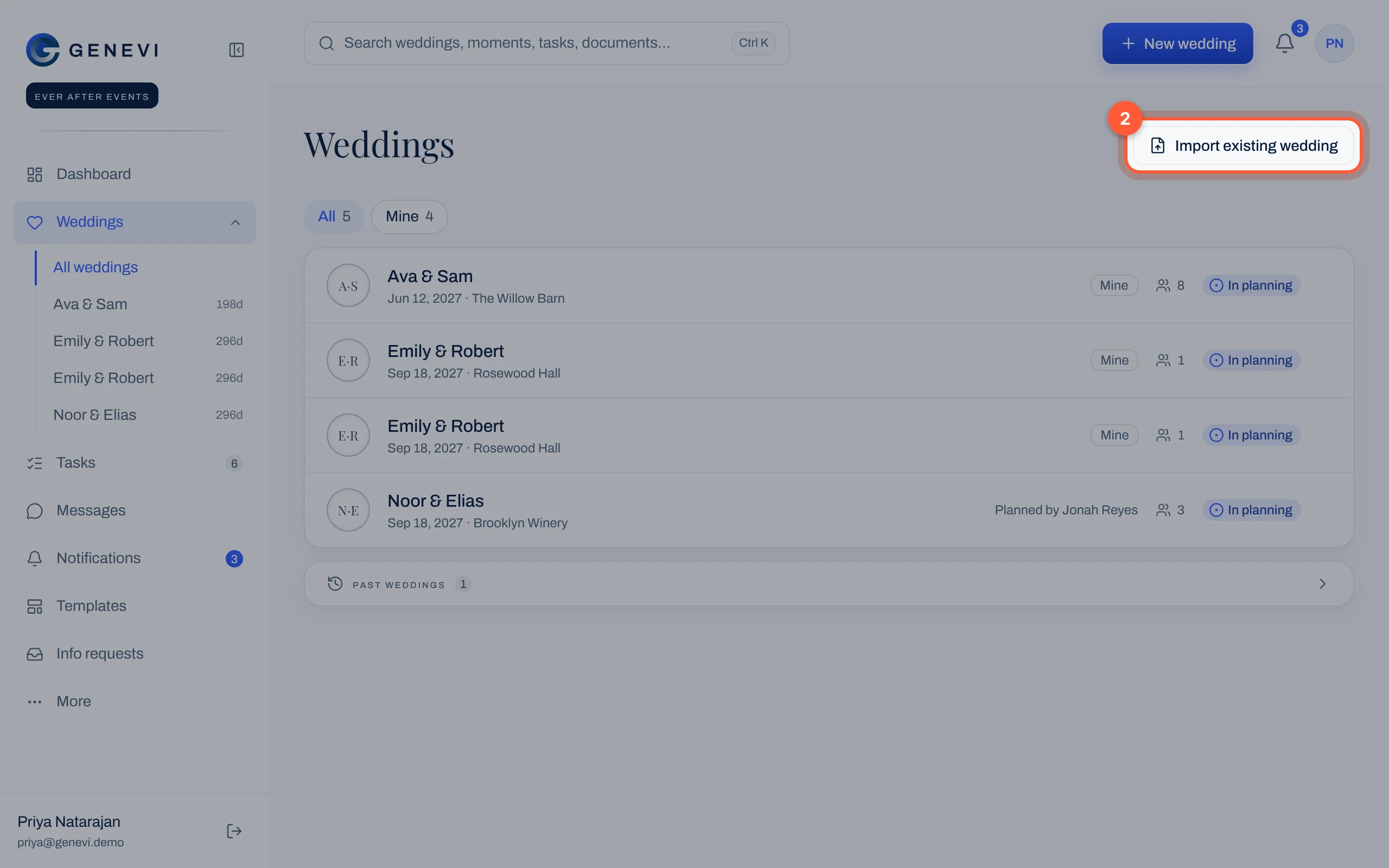
Step 2: Go to Weddings and choose Import existing wedding.
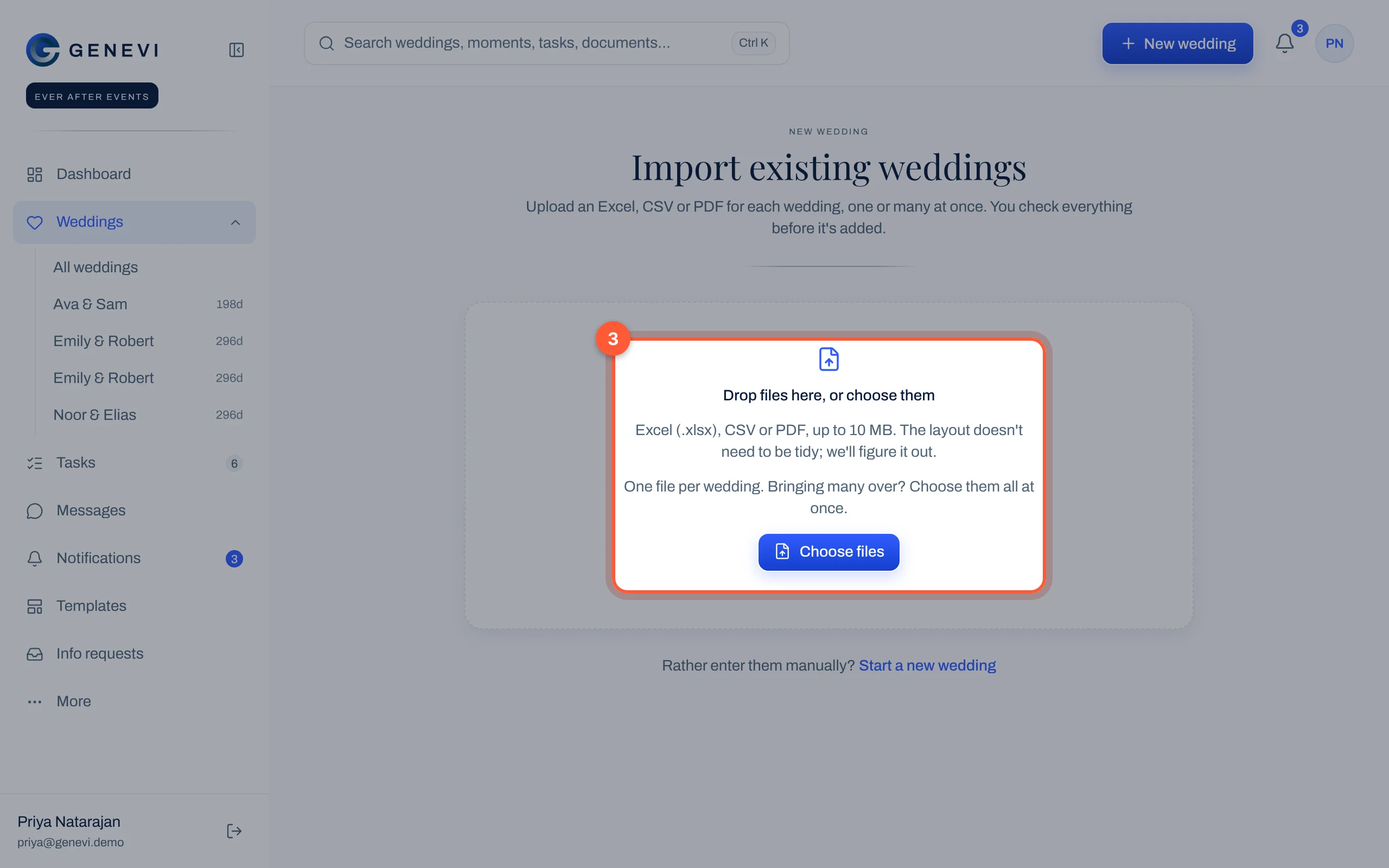
Step 3: Drag all the files onto the card at once, or choose Choose files and select them together.
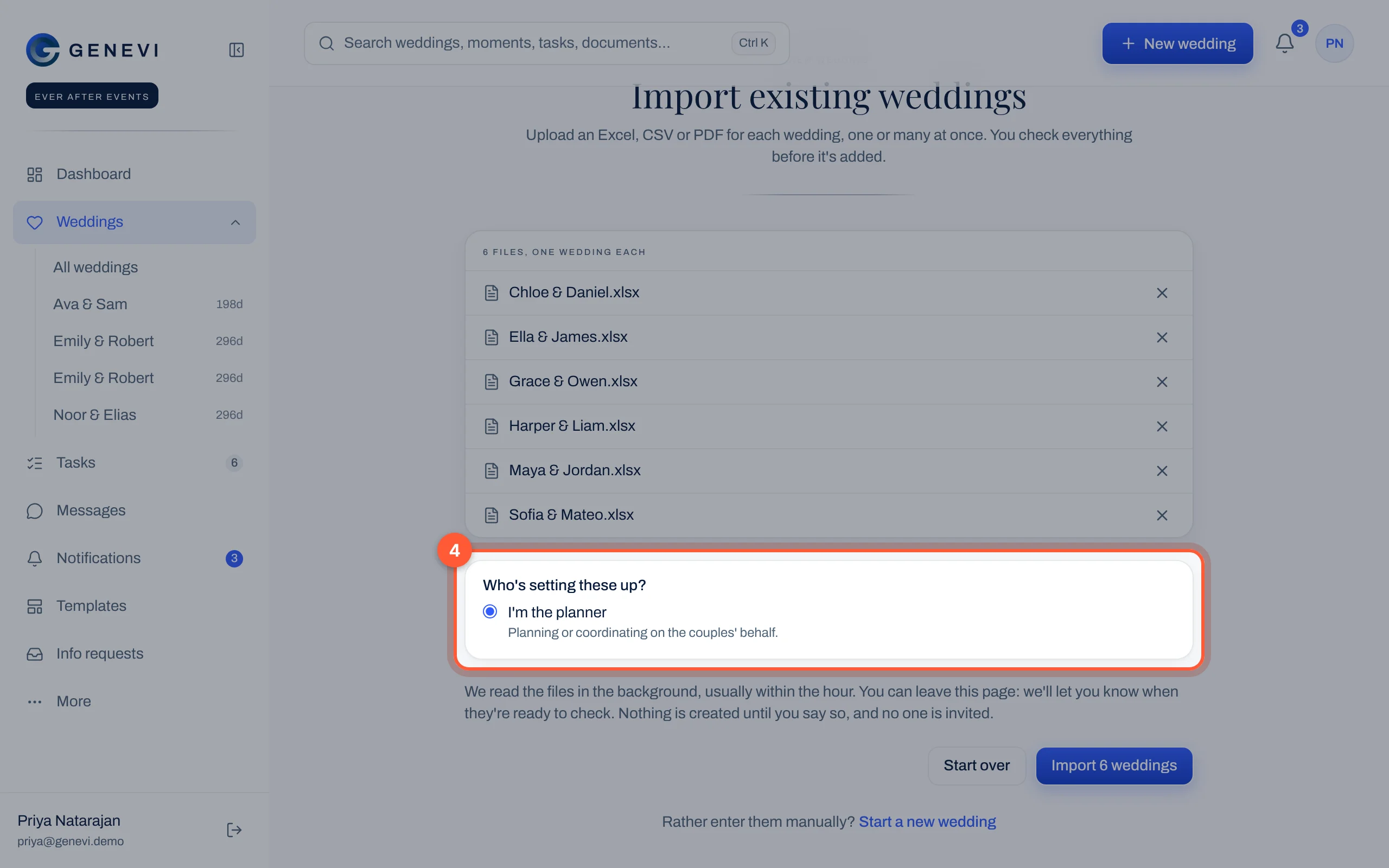
Step 4: Under Who's setting these up?, say who you are: the planner, or your company as a vendor.
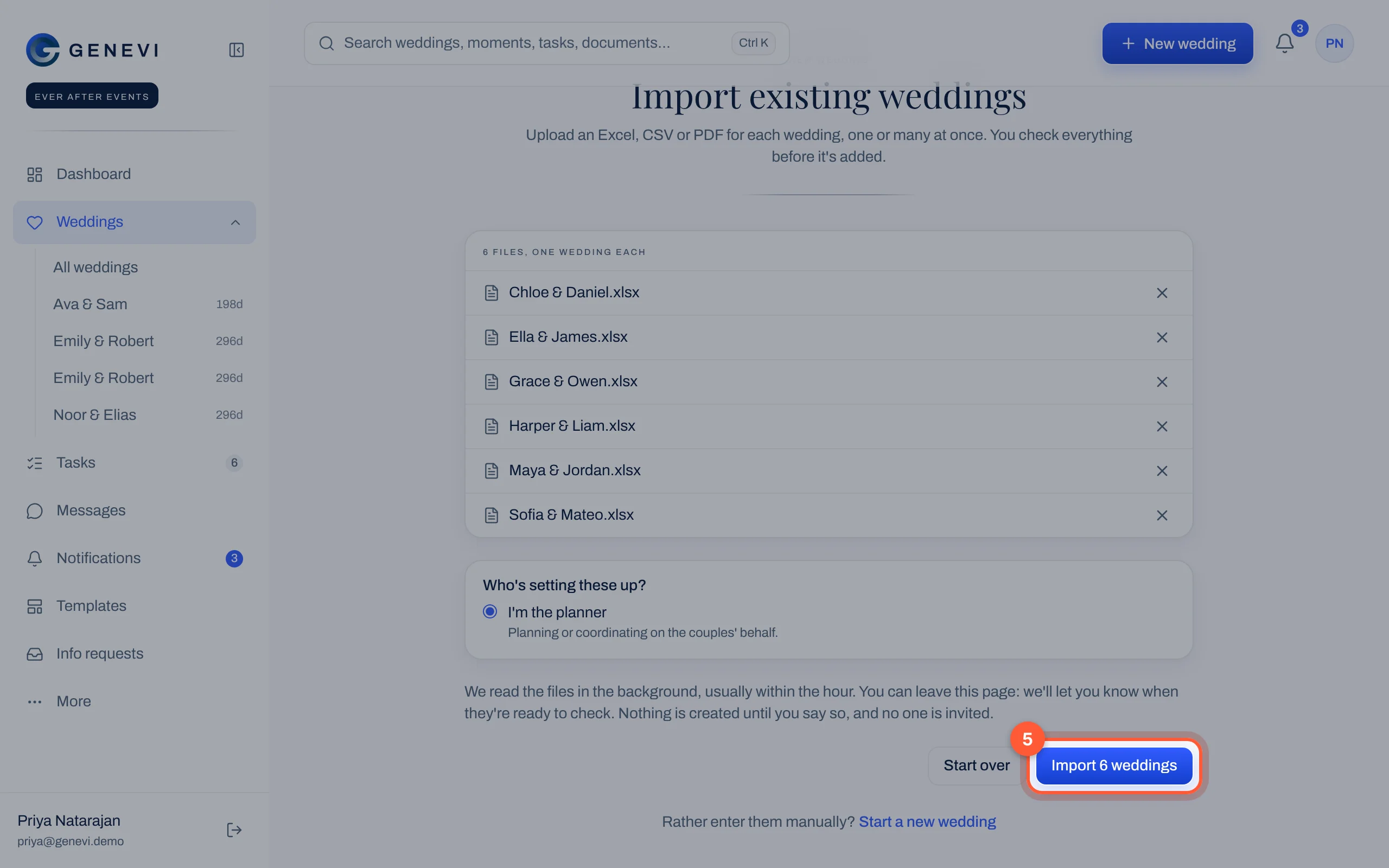
Step 5: Choose Import 6 weddings (the number matches your files). Keep the page open for the few seconds each file takes to send.
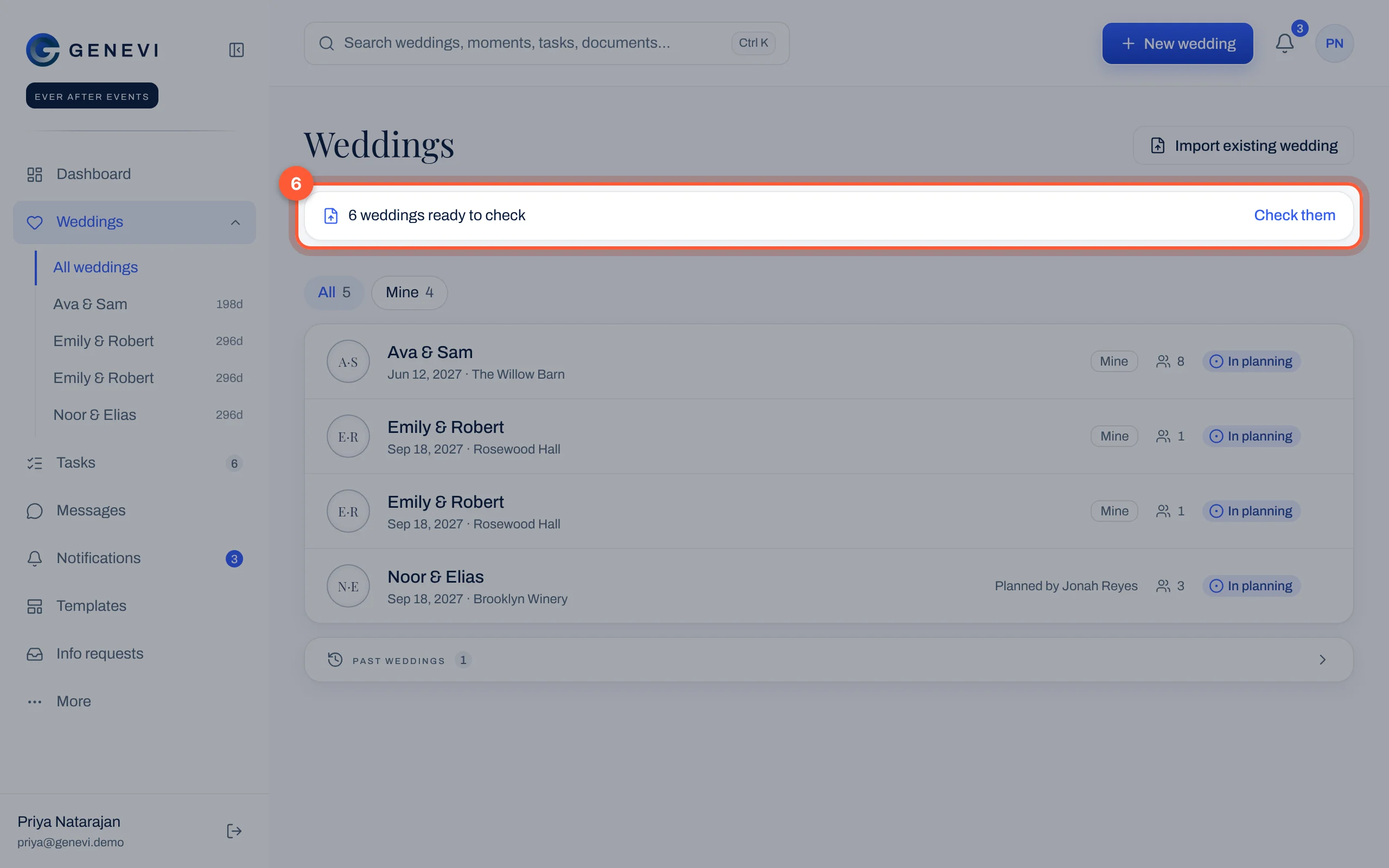
Step 6: Leave Genevi reading. You can close the page. A banner on Weddings says when they're ready, and you get a notification too. Choose Check them.
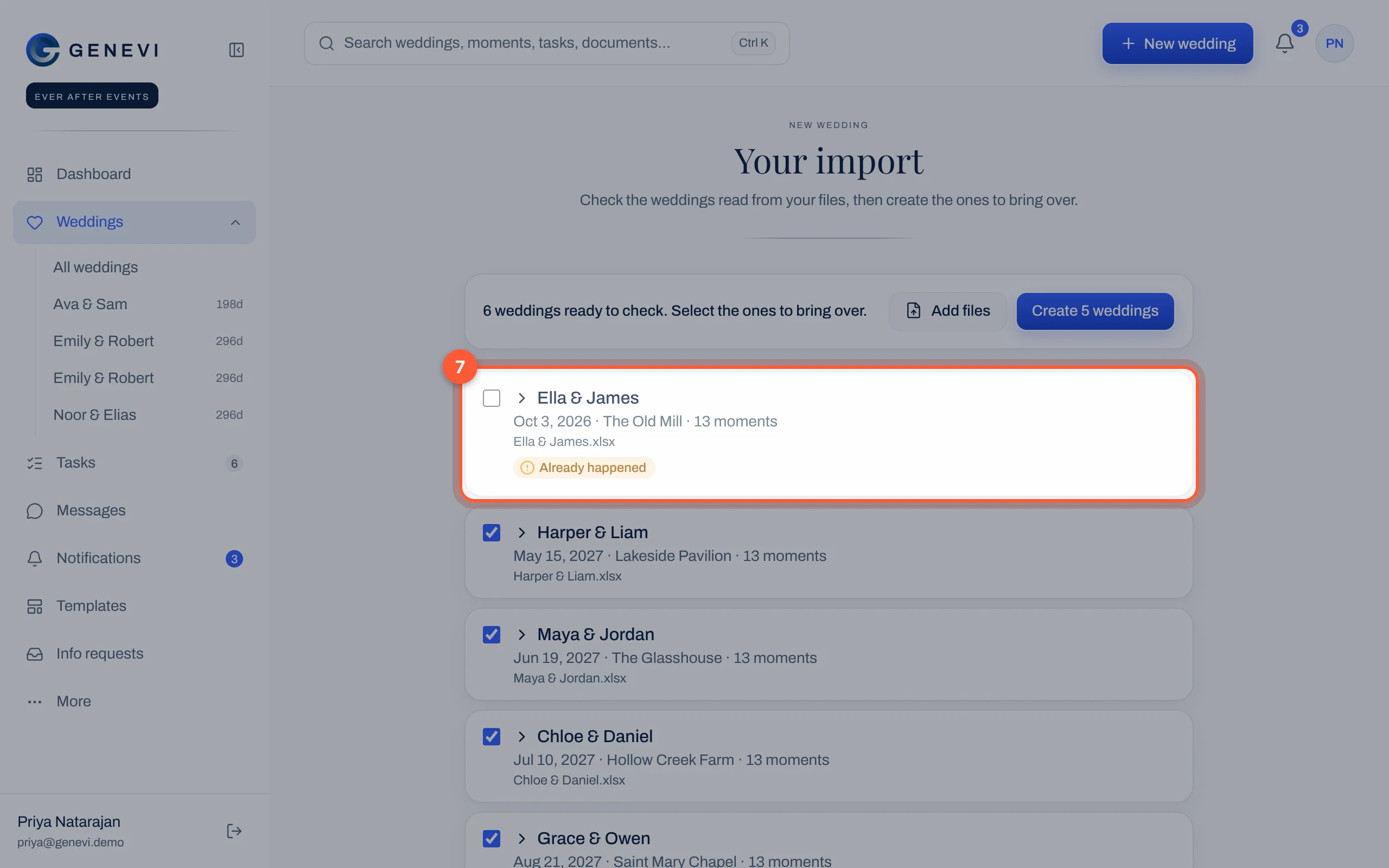
Step 7: Check each wedding in the list and correct anything that's wrong. Weddings that already happened, or that look like one you already have, start unselected.
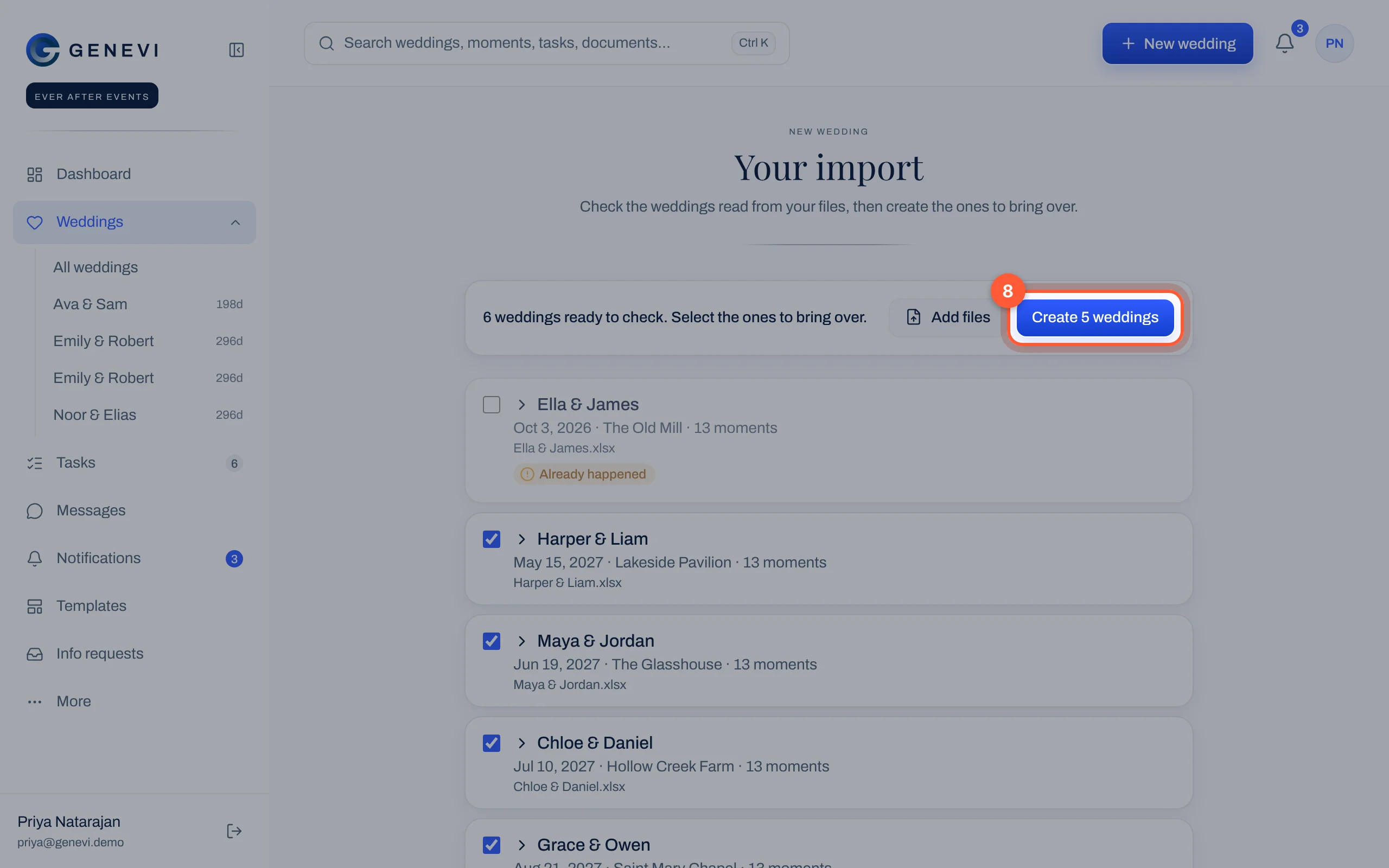
Step 8: Choose Create 5 weddings (the number matches what you selected). They appear on your Weddings page. No one is invited until you invite them.
If something goes wrong: A file marked “Couldn't read this file” is left out. Try saving it in another format, such as PDF, and import it again.