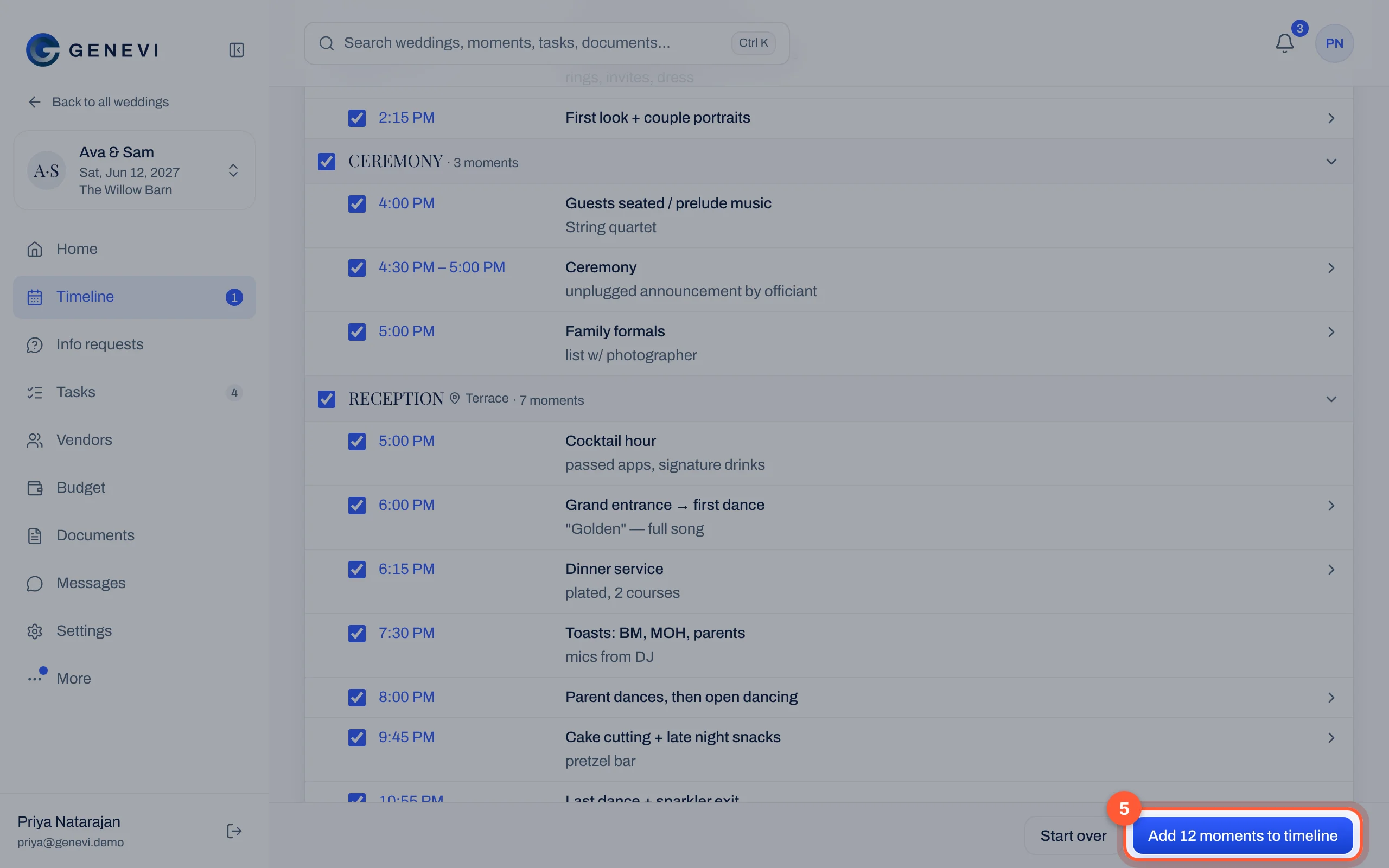
HelpBringing your weddings over
How to · 5 steps
Import a timeline into a wedding you already have
Video coming soon: Bringing your weddings over
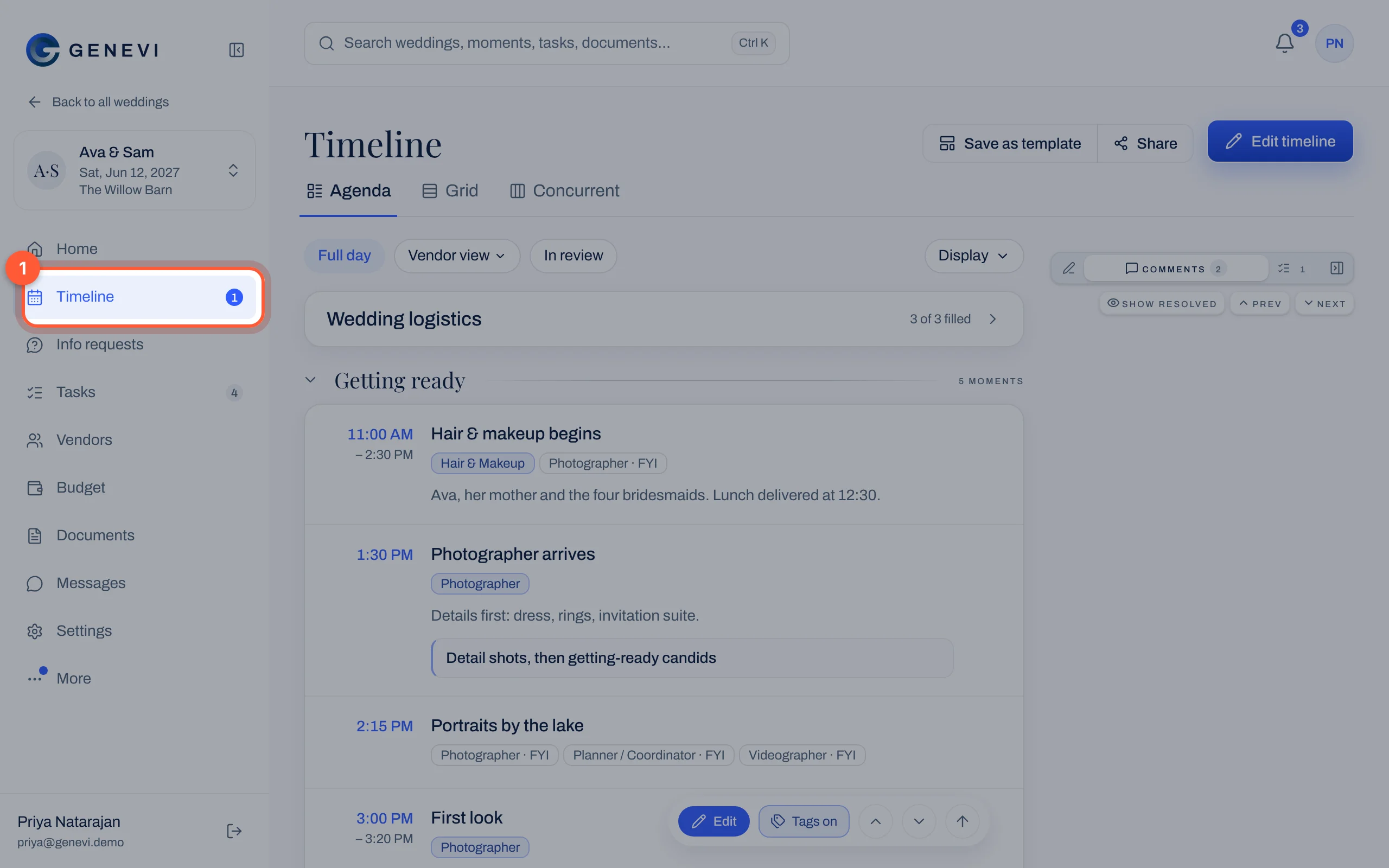
First, what it doesCan I import a timeline into a wedding that already exists?Read this firstStep 1: Open the wedding and go to its Timeline.
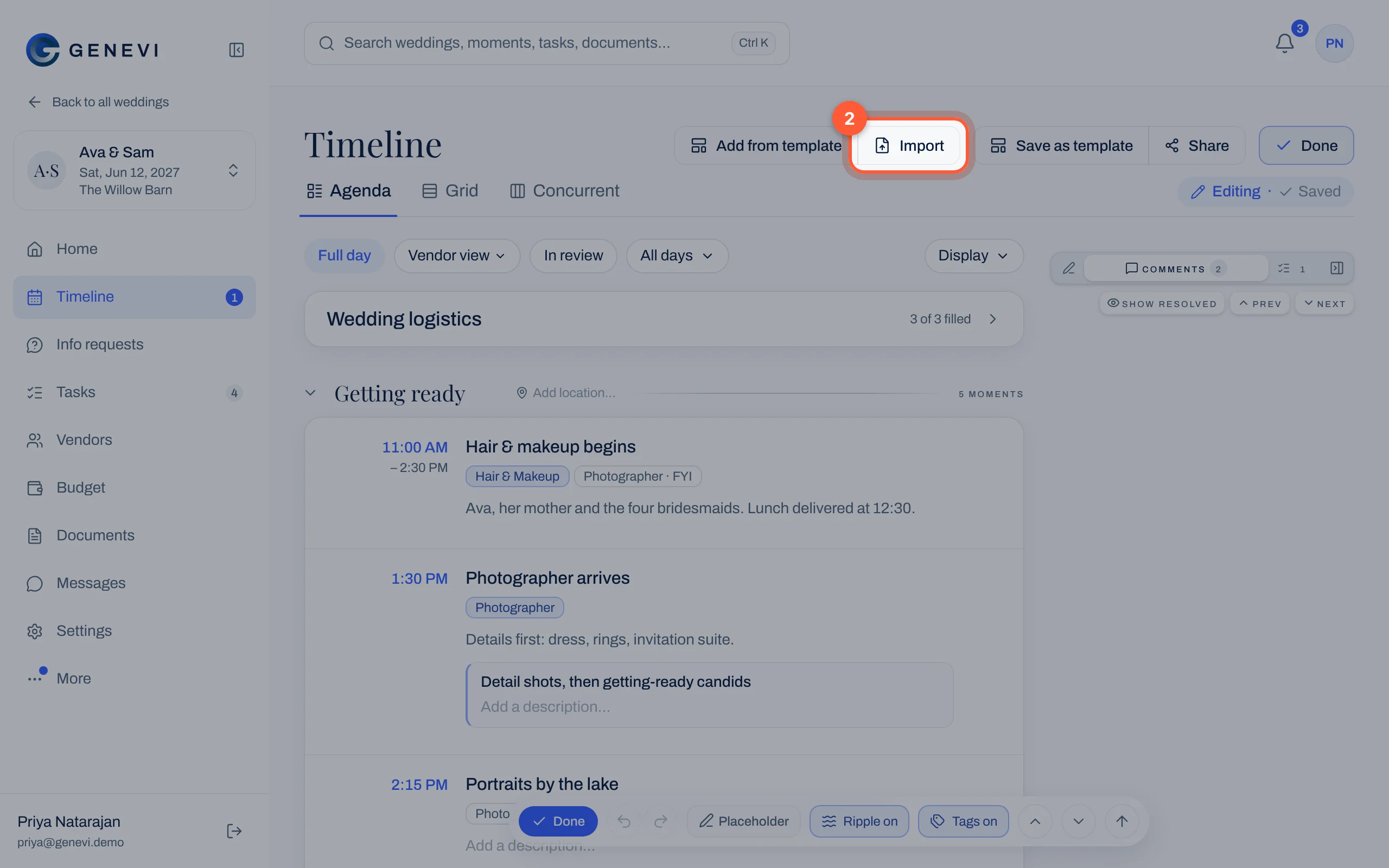
Step 2: Choose Edit timeline, then Import. On a phone, open the ⋯ menu and choose Import a timeline.
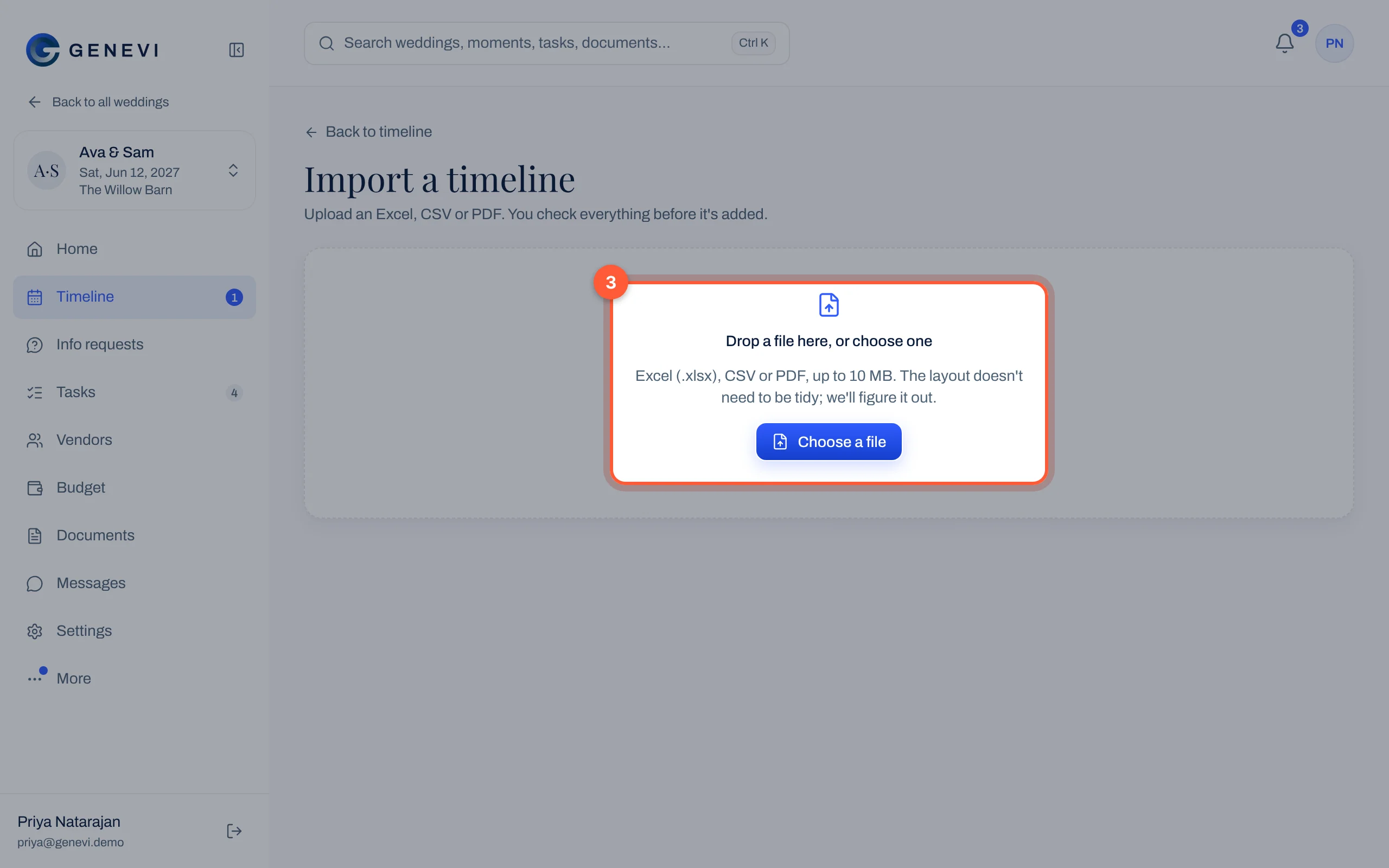
Step 3: Drag your file onto the card, or choose Choose a file.
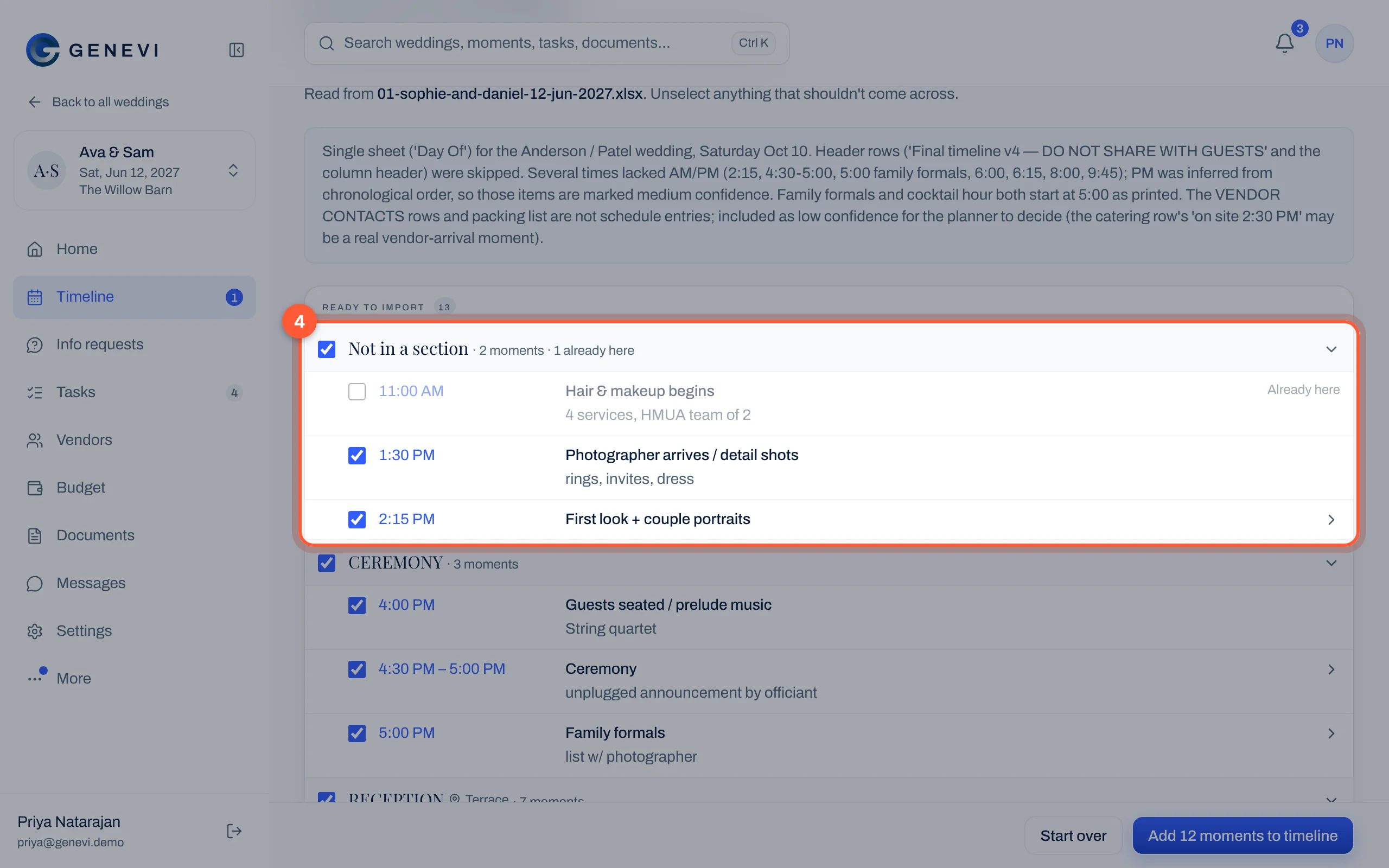
Step 4: Check the moments. Anything already on the timeline is marked Already here and left unselected, so nothing is doubled.
Step 5: Choose Add 12 moments to timeline (the number matches what you selected). They join the sections you already have.