
How to · 5 steps
Suggest a change to the timeline
Video coming soon: You've been invited
First, what it doesCan my vendors change the timeline?Vendors suggest changes and the planner or couple approves them, so nothing changes on the day without someone in charge knowing.Read this firstStep 1: Open the wedding and choose Timeline in the wedding's menu.
Step 2: Choose Edit timeline, at the top right. You're now suggesting: nothing changes for anyone until it's approved.

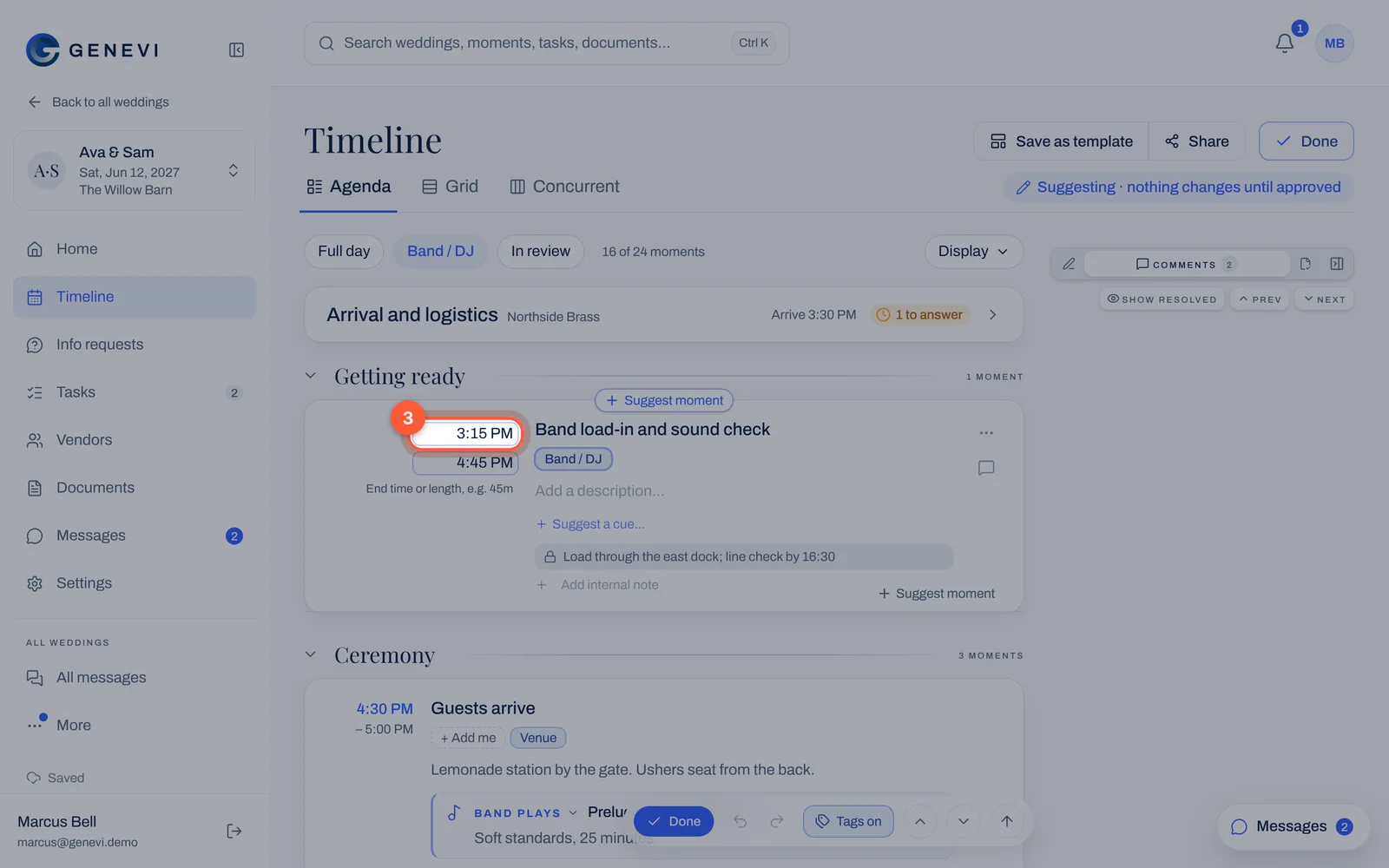
Step 3: Make your change. For example, choose a moment's time and type a new one. Your change shows in amber.
Step 4: When you're happy, choose Review and send at the bottom.

Step 5: Check your changes and choose Send for approval. The planner gets a notice, and you'll hear back once they decide.

If something goes wrong: Changed your mind? Choose Discard in the same bar, or Discard all in the review window, before you send.