
How to · 4 steps
Invite family and friends to follow along
Video coming soon: For family and friends
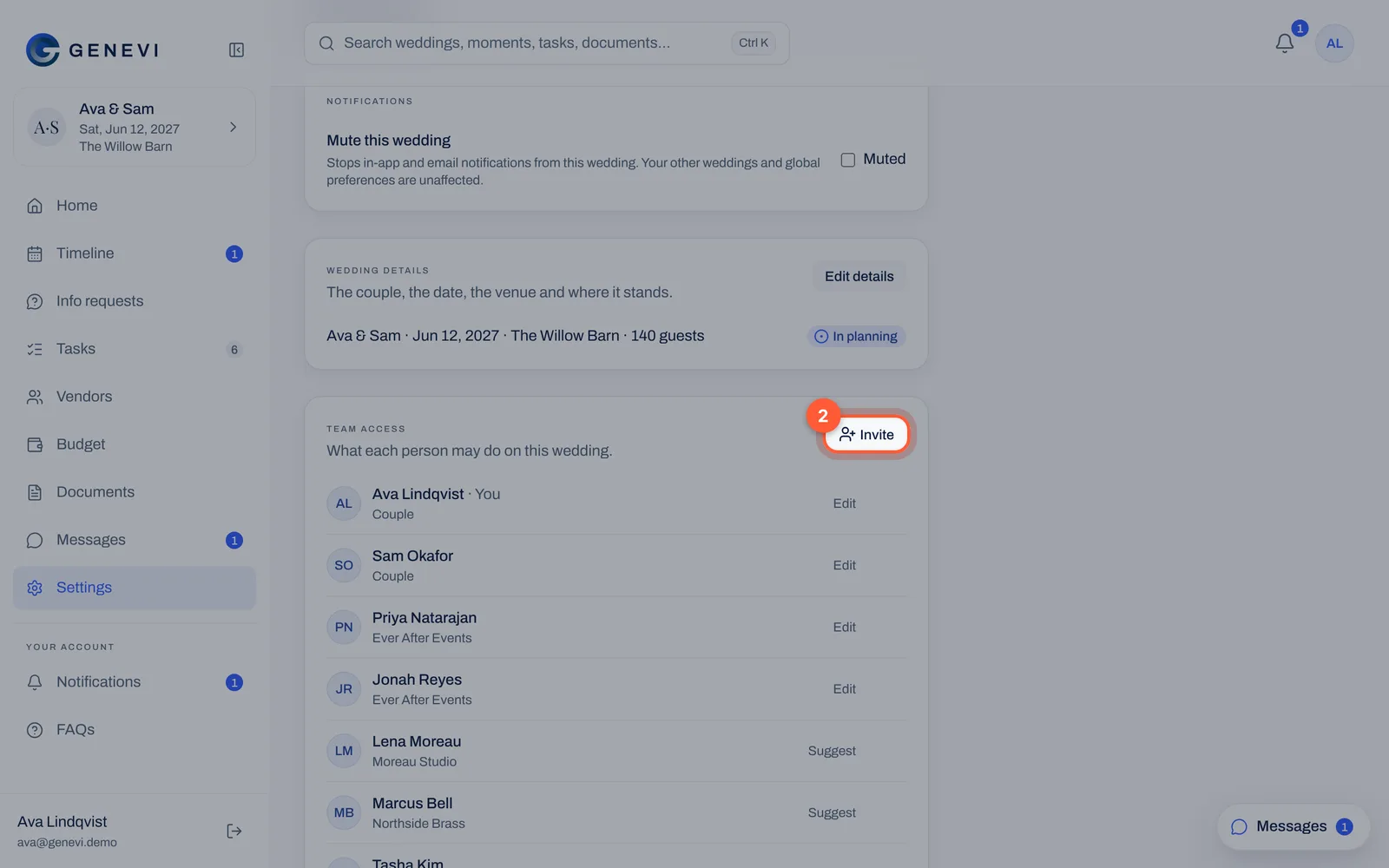
First, what it doesWhat can family and friends see?The plan for the day and the key details, and nothing else. They can't change anything, and they never see the budget, tasks, documents or messages.Read this firstStep 1: Open your wedding and choose Settings in the menu on the left.

Step 2: Find Team access and choose Invite.
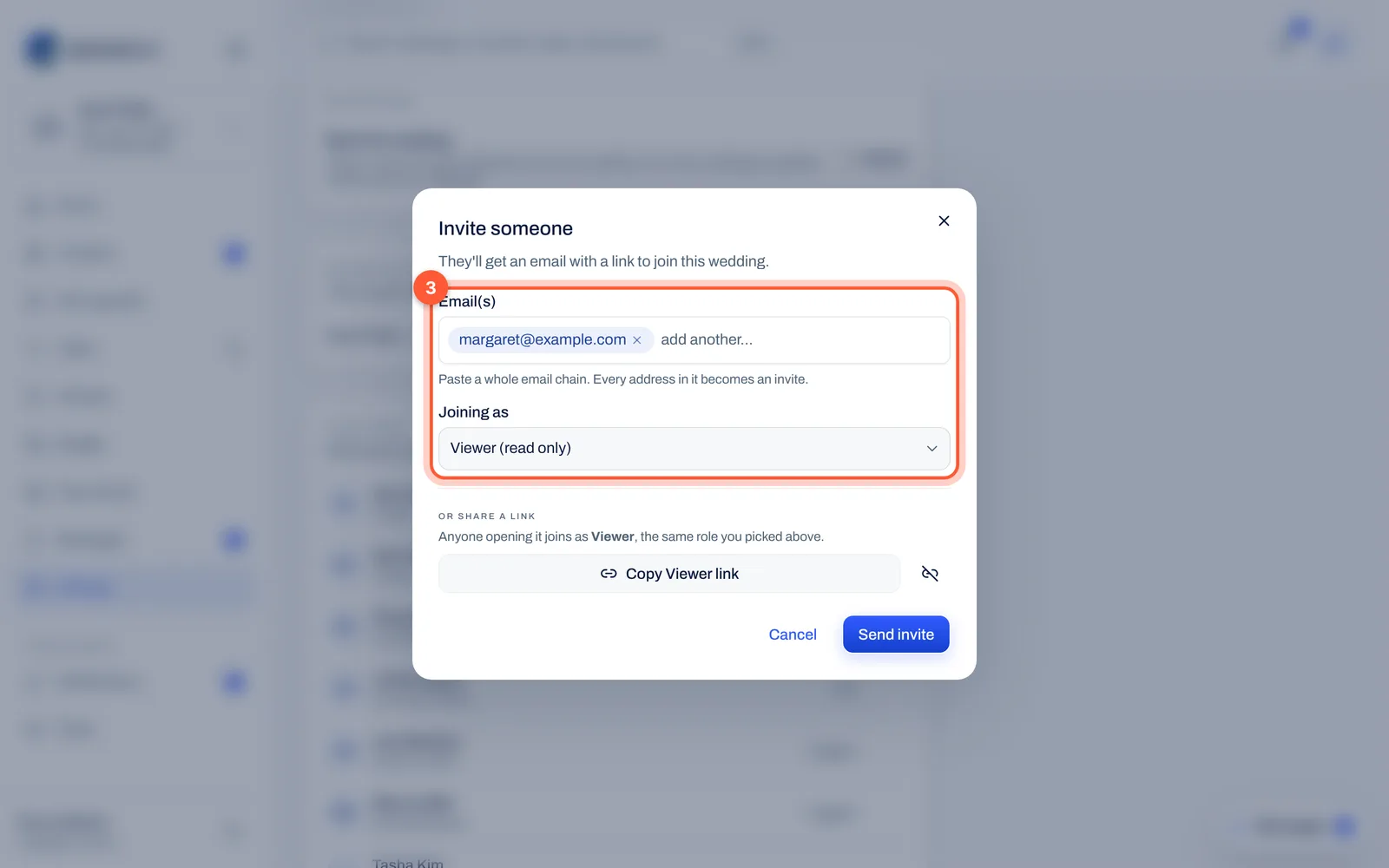
Step 3: Type their email address. Under Joining as, choose Viewer (read only).
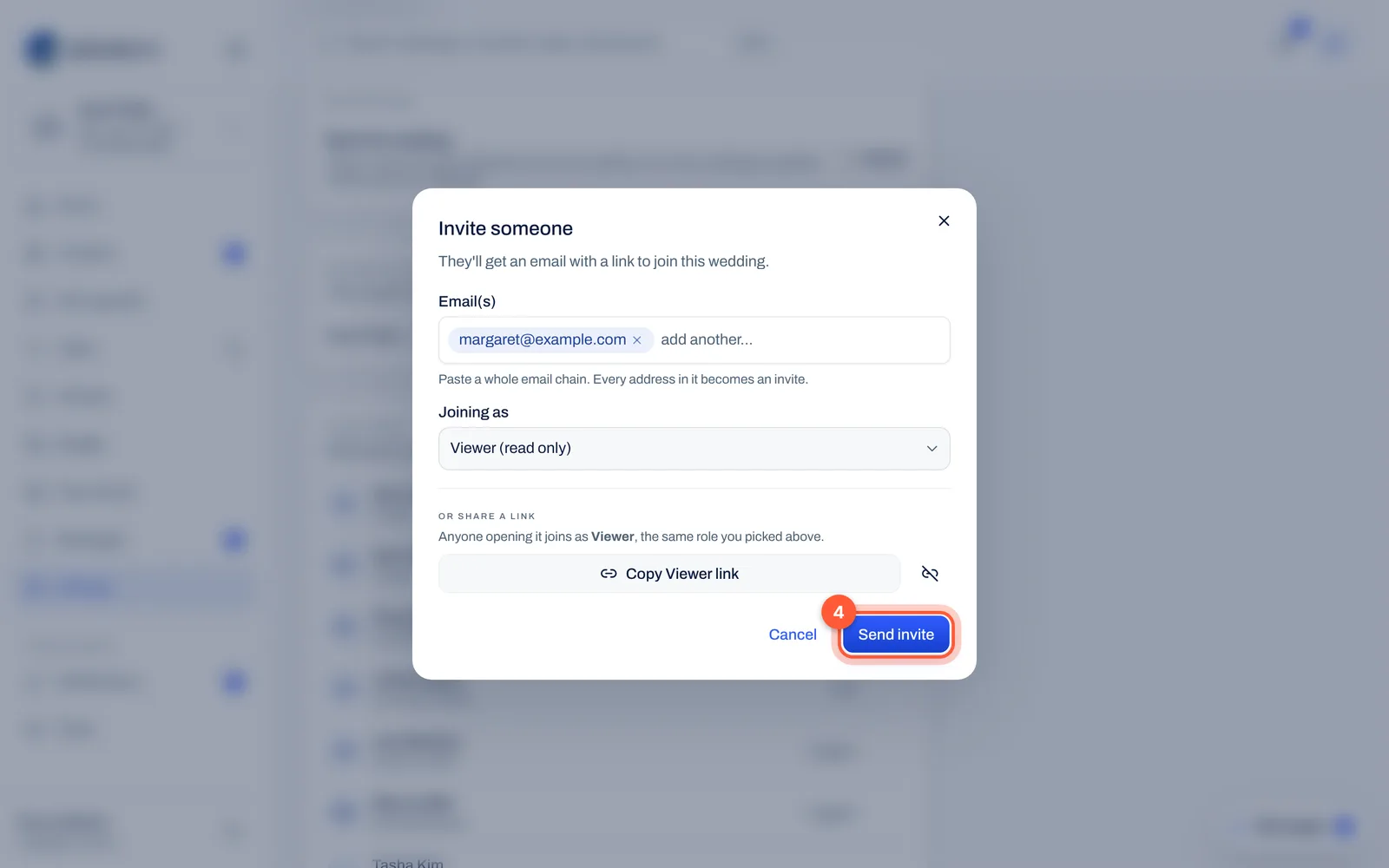
Step 4: Choose Send invite. They can see the day's plan, but can't change anything.
If something goes wrong: Want a parent to help with more than reading? Ask your planner to change their access to Comment, so they can leave notes too.